Forgot Password
Reset your True Tracker account password when you can't remember your login credentials.
Overview
The Forgot Password feature allows you to reset your password securely when you cannot access your True Tracker account.
How to Reset Your Password
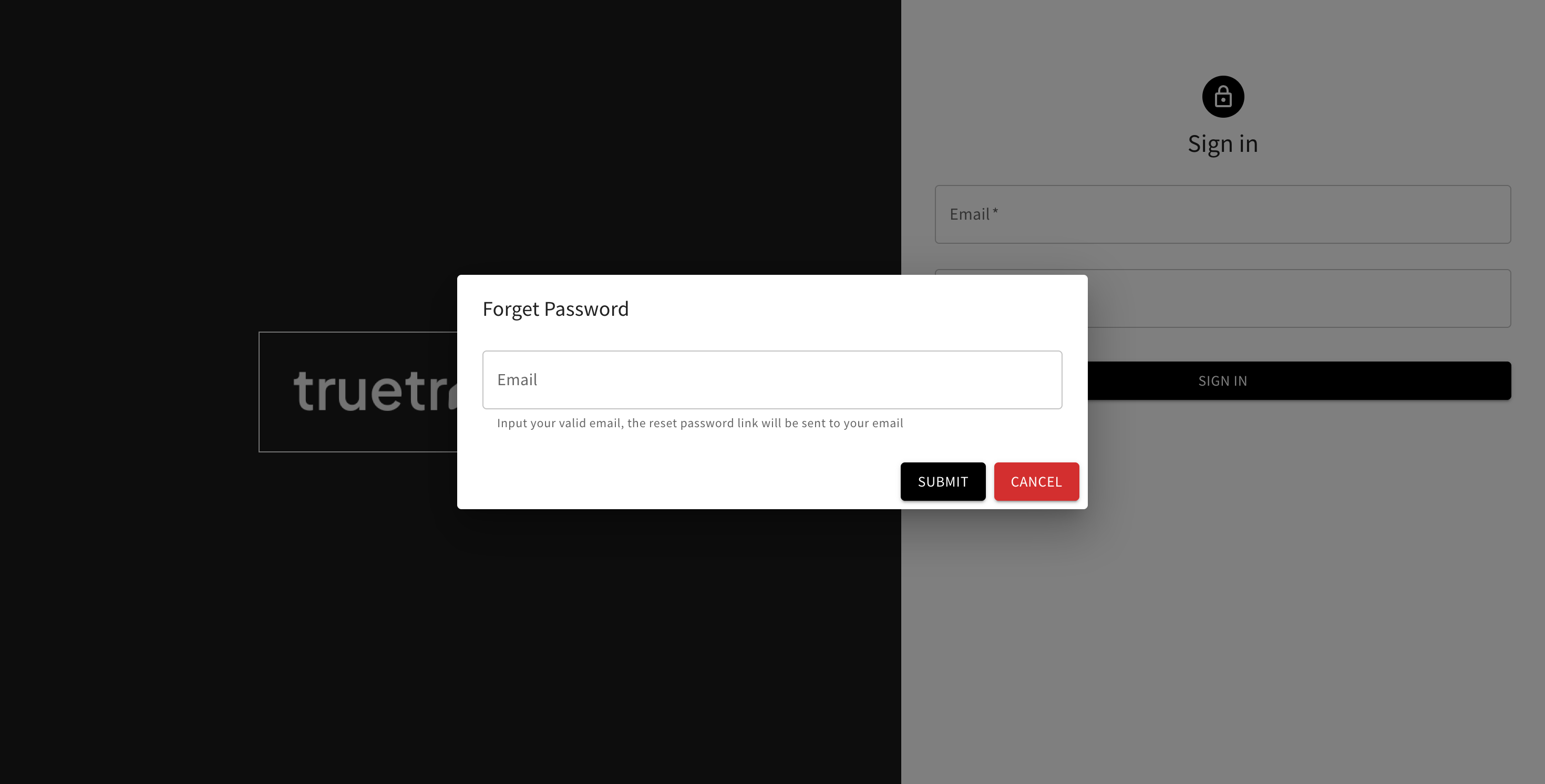
The Forgot Password screen where you can reset your account password.
-
Go to Login Page
- Navigate to the True Tracker login page
- Look for the "Forgot Password?" link
-
Enter Your Email
- Click "Forgot Password?" link
- Enter your registered email address
- Click "Send Reset Link"
-
Check Your Email
- Check your email inbox for a password reset message
- Click the reset link in the email
- The link will expire after 24 hours
-
Create New Password
- Enter your new password
- Confirm the new password
- Click "Reset Password"
-
Login with New Password
- Return to the login page
- Use your email and new password to sign in
Troubleshooting
Common Issues
Email Not Received
- Check your spam/junk folder
- Verify you entered the correct email address
- Wait a few minutes for delivery
- Contact support if email doesn't arrive
Reset Link Expired
- Request a new password reset
- Use the new link within 24 hours
- Complete the reset process promptly
Password Requirements
- Minimum 6 characters
- Use a strong, unique password
- Avoid common passwords
Getting Help
If you continue to have trouble resetting your password:
- Contact your system administrator
- Reach out to IT support
- Use the support contact information provided by your organization