Task Template Management
Comprehensive task template administration for managing standardized maintenance procedures and workflows in True Tracker.
Overview
Task Template Management allows administrators to create, modify, and manage task templates, standardize maintenance procedures, and maintain workflow consistency within True Tracker.
Accessing Task Template Management
- Sign in with administrator privileges
- Navigate to Maintenance → Task Template
Note: Task Template Management requires administrator or maintenance management permissions.
Task Template List Screen
The Task Template List is your main hub for viewing and managing all task templates in your True Tracker system. This screen displays all template records in an organized table format.
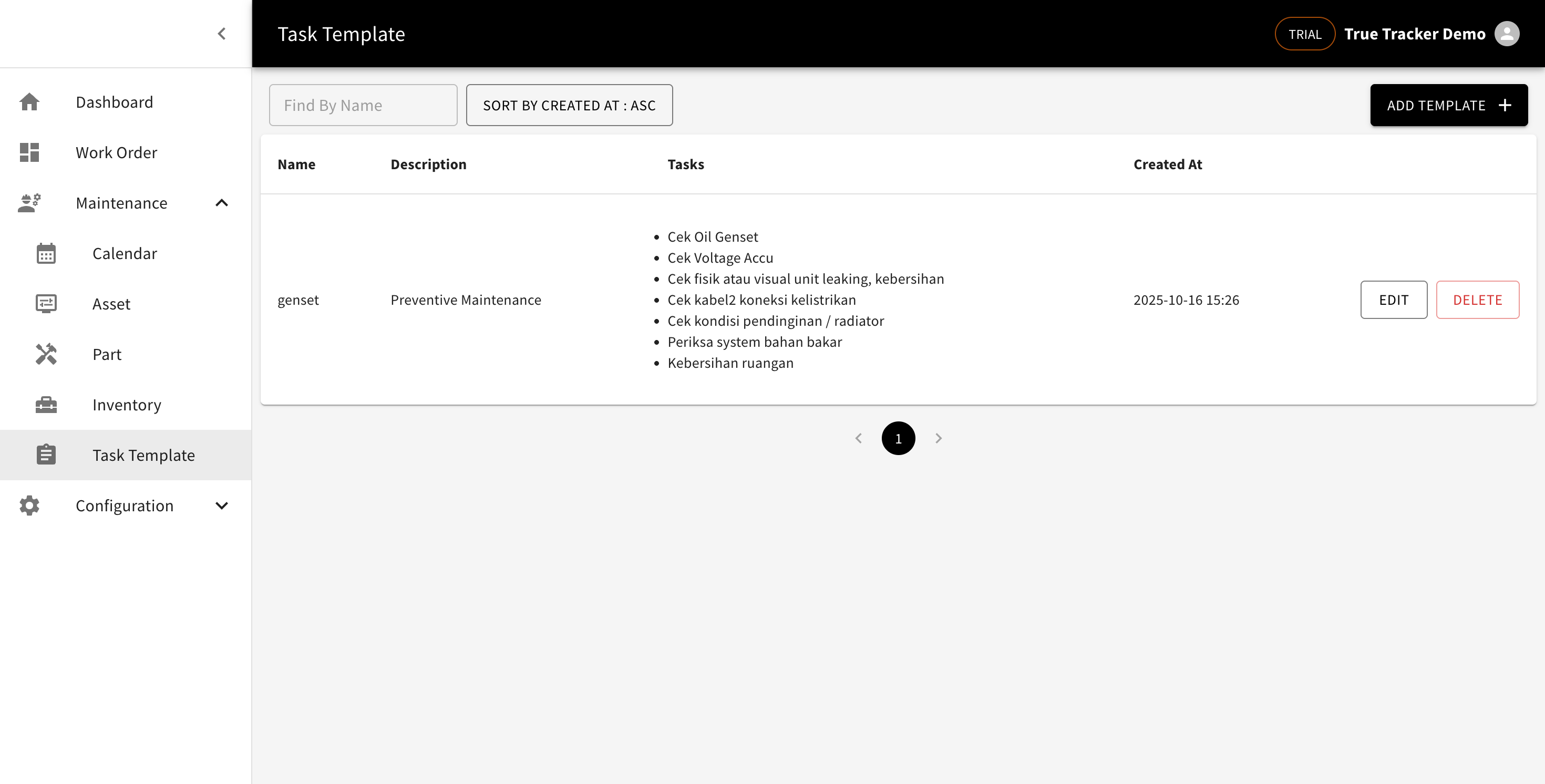
The Task Template Management screen showing the list of all templates with their details and management options.
What You'll See
| Column | Description | Example |
|---|---|---|
| Name | Name of the task template | "Monthly Equipment Check" |
| Description | Brief description of the template | "Complete monthly inspection" |
| Tasks | Multiple task items in the template | "Check oil, Inspect belts, Test motors" |
| Created At | When the template was created | "2025-10-16 14:51" |
Search and Filter Options
Find By Name
- Use the search box to quickly find templates by typing their name
- Search results update as you type
- Case-insensitive search
Sort Options
- Click the sort dropdown (e.g., "SORT BY CREATED AT : ASC") to change sorting
- Sort by: Name or Created At
- Sort type: ASC (ascending) or DESC (descending)
- Default sorting is by Created At in ascending order
Available Actions
For Each Template:
- EDIT - Modify template details and procedures
- DELETE - Remove template from the system (use with caution)
Main Actions:
- ADD TEMPLATE - Create a new task template
How to Use the Task Template List
- View All Templates: The screen automatically displays all templates when you access it
- Search for Specific Templates: Type in the "Find By Name" box to locate templates quickly
- Sort the List: Click the sort dropdown to organize templates by different criteria
- Manage Individual Templates: Use the EDIT or DELETE buttons for each template
- Add New Templates: Click the "ADD TEMPLATE" button to create new templates
- Navigate Pages: Use the pagination controls at the bottom if you have many templates
Template Status Indicators
- Active: Template is available for use in work orders
- Inactive: Template is disabled and not available
Create Task Template
The Create Task Template form allows you to add new templates to your True Tracker system. Click the ADD TEMPLATE button from the Task Template List to open this form.
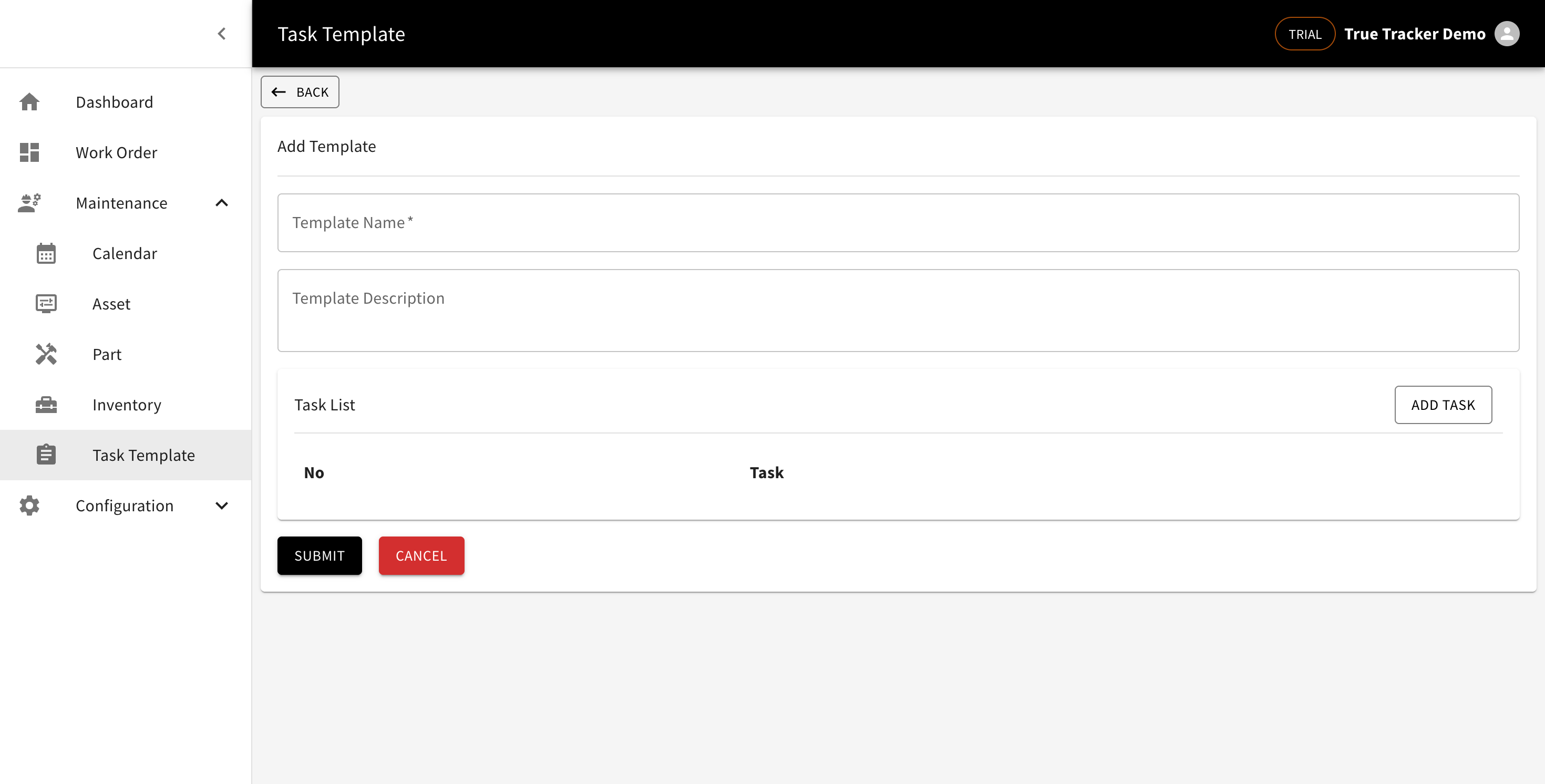
The Create Task Template form showing the fields for adding a new template.
Form Fields
| Field | Description | Required | Example |
|---|---|---|---|
| Name | Name of the task template | Yes | "Monthly Equipment Check" |
| Description | Brief description of the template | Yes | "Complete monthly inspection" |
| Tasks | Multiple task items | Yes | "Check oil, Inspect belts, Test motors" |
Form Actions
- Save - Creates the new task template
- Cancel - Returns to Task Template List without saving
How to Create a Task Template
- Click ADD TEMPLATE from the Task Template List screen
- Fill in all required fields:
- Enter the template name
- Provide detailed description
- Select appropriate category
- Set estimated duration
- Choose priority level
- Add instructions and tools (optional)
- Click Save to create the template
- You'll return to the Task Template List and the new template appears in the list
Edit Task Template
Click the EDIT button next to any template in the list to modify their information. The edit form contains the same fields as the create form.
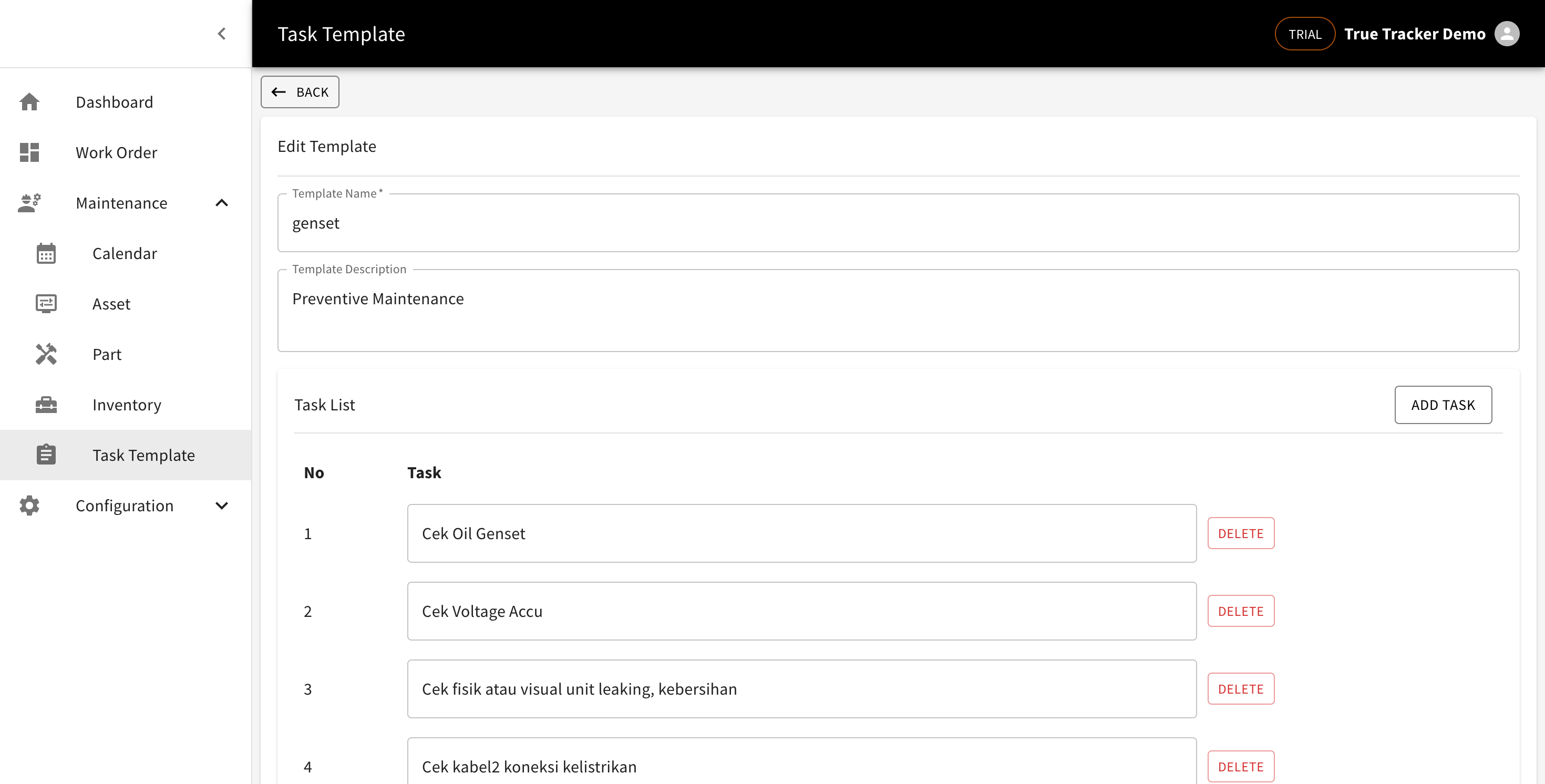
The Edit Task Template form showing the fields for modifying template information.
How to Edit a Task Template
- Find the template in the list
- Click the EDIT button
- Modify the necessary fields
- Click Save to update the template
Delete Task Template
Click the DELETE button to remove a template from the system.
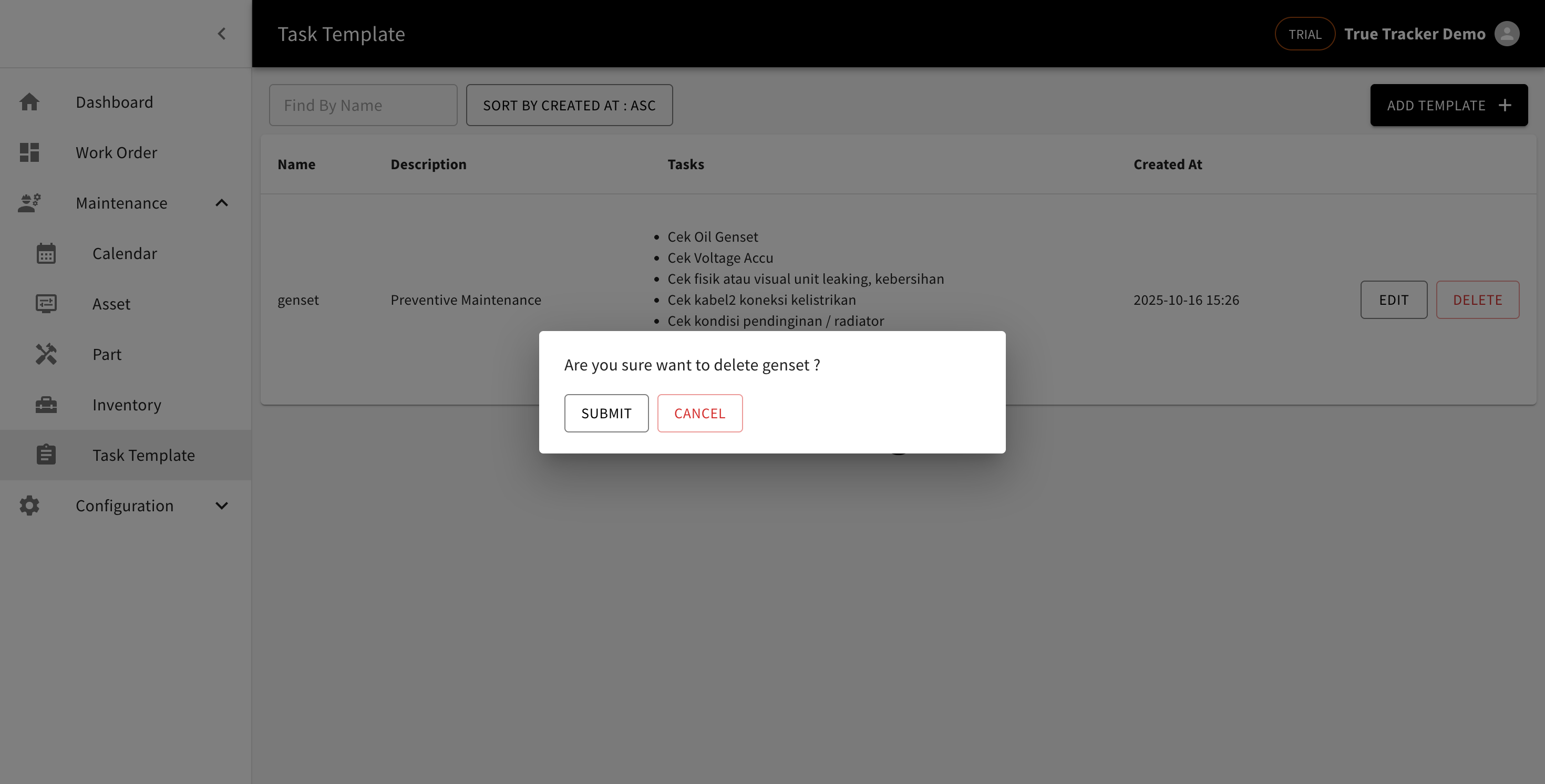
The Delete Task Template confirmation popup asking for confirmation before removing the template.
How to Delete a Task Template
- Find the template in the list
- Click the DELETE button
- Confirm the deletion in the popup
Warning: Deleting a template is permanent and cannot be undone.