Change Password

Secure your True Tracker account by updating your password regularly and following security best practices.

Overview

Changing your password regularly is essential for maintaining account security. True Tracker provides secure password management tools to help protect your account and organizational data.

Accessing Password Settings

  1. Sign in to your True Tracker account
  2. Click your profile avatar in the top-right corner
  3. Select "Change Password"

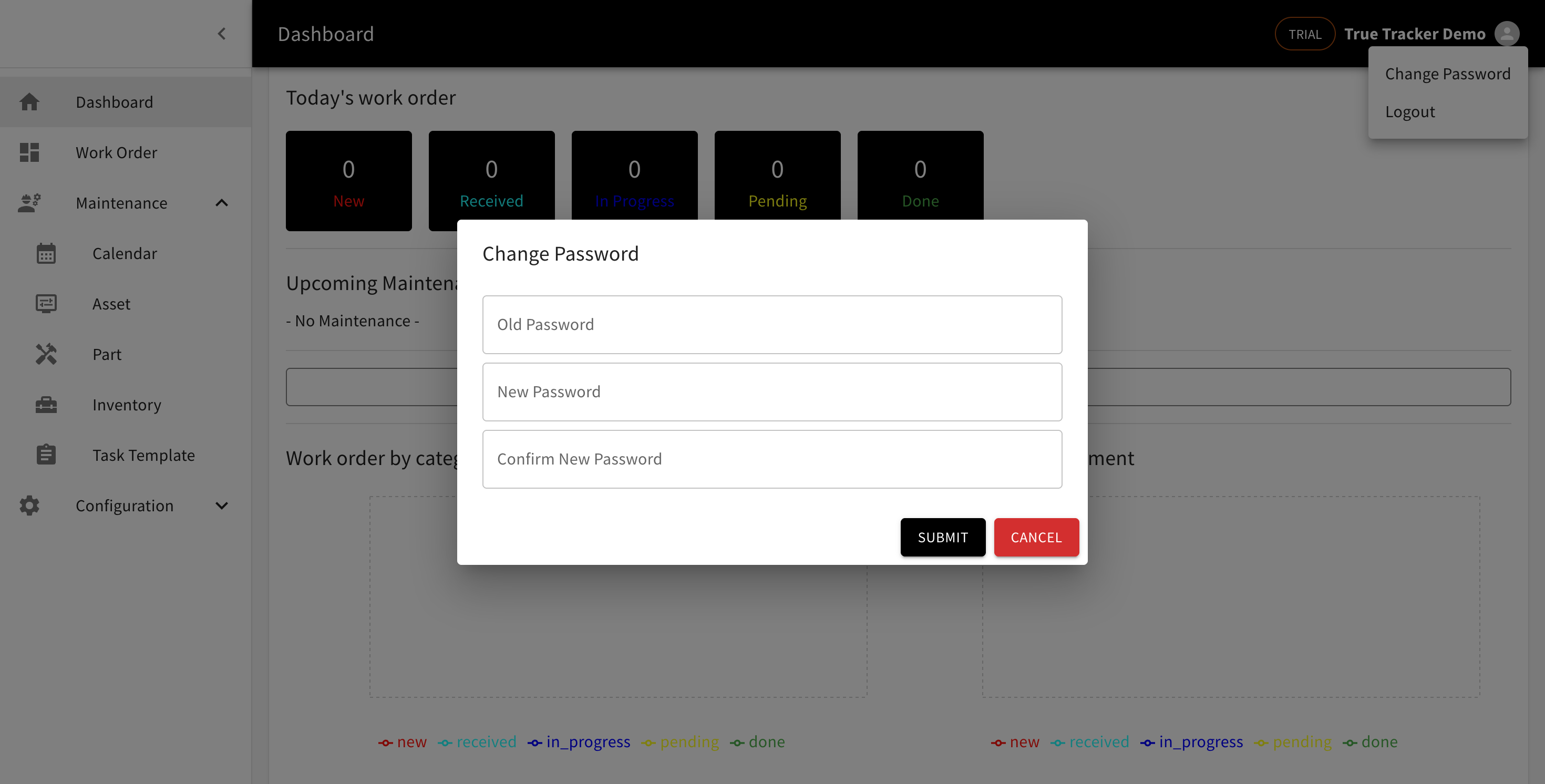
Change Password Screen

The Change Password form showing the fields for updating your account password.

Password Requirements

Your new password must meet these security requirements:

Minimum Requirements

  • Length: At least 8 characters (12+ recommended)
  • Uppercase: At least one uppercase letter (A-Z)
  • Lowercase: At least one lowercase letter (a-z)
  • Numbers: At least one digit (0-9)
  • Special Characters: At least one symbol (@, #, $, %, etc.)

Additional Security Rules

  • Cannot be the same as your current password
  • Cannot contain your username or email address
  • Cannot be a commonly used password
  • Cannot be similar to your last 5 passwords
  • Must not contain personal information (name, birthdate, etc.)

Changing Your Password

Step-by-Step Process

  1. Enter Current Password

    • Type your existing password in the "Current Password" field
    • This verifies your identity before allowing changes
  2. Create New Password

    • Enter your new password in the "New Password" field
    • Password strength indicator will show security level
    • Aim for "Strong" or "Very Strong" rating
  3. Confirm New Password

    • Re-enter your new password in the "Confirm Password" field
    • Passwords must match exactly
  4. Save Changes

    • Click "Save" button
    • System will validate all requirements
    • Confirmation message will appear upon success

Password Strength Indicator

The system provides real-time feedback:

  • Weak: Red indicator, basic requirements not met
  • Fair: Yellow indicator, meets minimum requirements
  • Good: Light green, good security practices
  • Strong: Green indicator, excellent security
  • Very Strong: Dark green, maximum security

Password Best Practices

Creating Strong Passwords

Use Passphrases

  • Combine multiple unrelated words
  • Example: "Coffee#Mountain$Blue9"
  • Easier to remember than random characters
  • Naturally meets length requirements

Avoid Common Mistakes

  • Don't use dictionary words
  • Avoid personal information
  • Don't use keyboard patterns (qwerty, 123456)
  • Avoid common substitutions (@ for a, 3 for e)

Password Composition Tips

  • Mix uppercase and lowercase letters
  • Include numbers throughout, not just at the end
  • Use special characters in the middle
  • Make it memorable but not guessable

Password Management

Regular Updates

  • Change password every 90 days (or as required by policy)
  • Update immediately if you suspect compromise
  • Don't reuse old passwords
  • Use different passwords for different systems

Secure Storage

  • Use a password manager for complex passwords
  • Don't write passwords down in plain text
  • Don't share passwords with others
  • Don't store passwords in browsers on shared computers

Compliance and Policies

Organizational Password Policy

  • Follow company password requirements
  • Adhere to change frequency requirements
  • Report security incidents immediately
  • Participate in security training

Regulatory Compliance

  • Meet industry-specific requirements
  • Maintain audit trails
  • Document security procedures
  • Regular security assessments

Troubleshooting

Common Issues

Password Not Accepted

  • Verify all requirements are met
  • Check for hidden characters
  • Ensure caps lock is correct
  • Try typing password in text editor first

Cannot Remember Current Password

  • Use password reset process
  • Contact system administrator
  • Verify identity for account recovery
  • Update password manager records

2FA Not Working

  • Check device time synchronization
  • Verify phone number/email is current
  • Use backup codes if available
  • Contact support for assistance

Getting Help

Self-Service Options

  • Password strength checker
  • Security best practices guide
  • FAQ and troubleshooting guides
  • Online security training

Support Contacts

  • IT Help Desk: Technical password issues
  • Security Team: Suspected compromises
  • System Administrator: Account lockouts
  • Manager: Policy questions

Security Incident Response

If You Suspect Compromise

  1. Immediate Actions

    • Change password immediately
    • Log out from all devices
    • Check recent account activity
    • Enable 2FA if not already active
  2. Report the Incident

    • Contact IT security team
    • Document suspicious activity
    • Provide timeline of events
    • Follow incident response procedures
  3. Follow-Up Actions

    • Monitor account for unusual activity
    • Update other related passwords
    • Review security practices
    • Participate in security review if requested

Remember: A strong password is your first line of defense against unauthorized access to your True Tracker account and your organization's maintenance data.