Asset Management
Comprehensive asset administration for tracking, maintaining, and managing equipment and machinery in True Tracker.
Overview
Asset Management allows administrators to create, modify, and manage physical assets, track their locations, monitor maintenance schedules, and maintain organizational equipment inventory within True Tracker.
Accessing Asset Management
- Sign in with appropriate privileges
- Navigate to Maintenance → Asset
Note: Asset Management requires maintenance or administrator permissions.
Asset List Screen
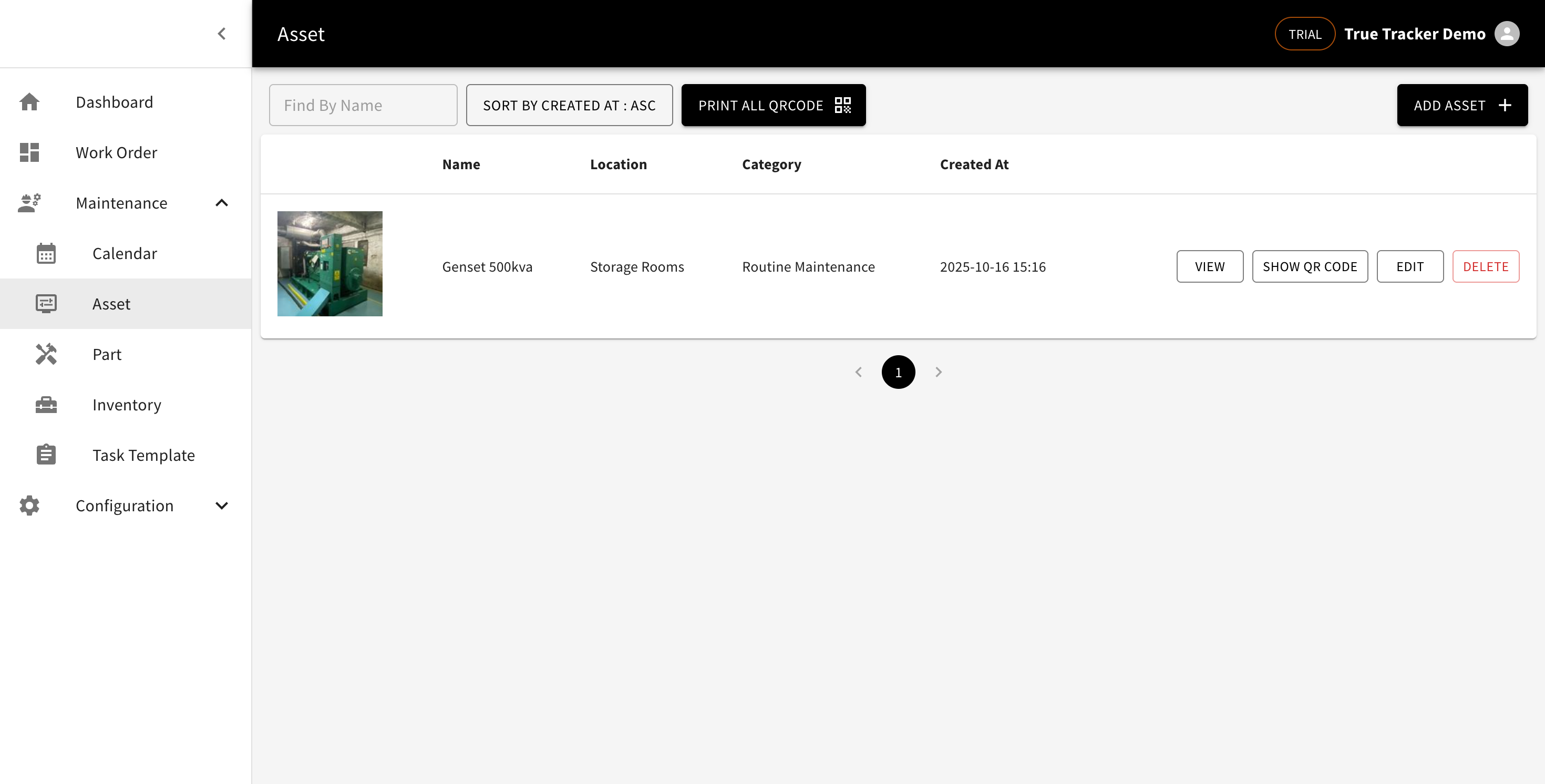
The Asset List is your main hub for viewing and managing all assets in your True Tracker system. This screen displays all assets in an organized table format.

The Asset Management screen showing the list of all assets with their details and management options.
What You'll See
| Column | Description | Example |
|---|---|---|
| Photo | Asset image for identification | Small thumbnail image |
| Name | Name/description of the asset | "Generator Unit A" |
| Location | Current location of the asset | "Building A - Floor 1" |
| Category | Asset category classification | "Equipment" |
| Created At | When the asset was registered | "2025-01-15 10:30" |
Available Actions
Main Actions:
- Print All QRCode - Generate QR codes for all assets
For Each Asset:
- View - Go to detail page
- Show QR code - Show QR code popup
- Edit - Modify asset details
- Delete - Remove asset from the system
Create Asset
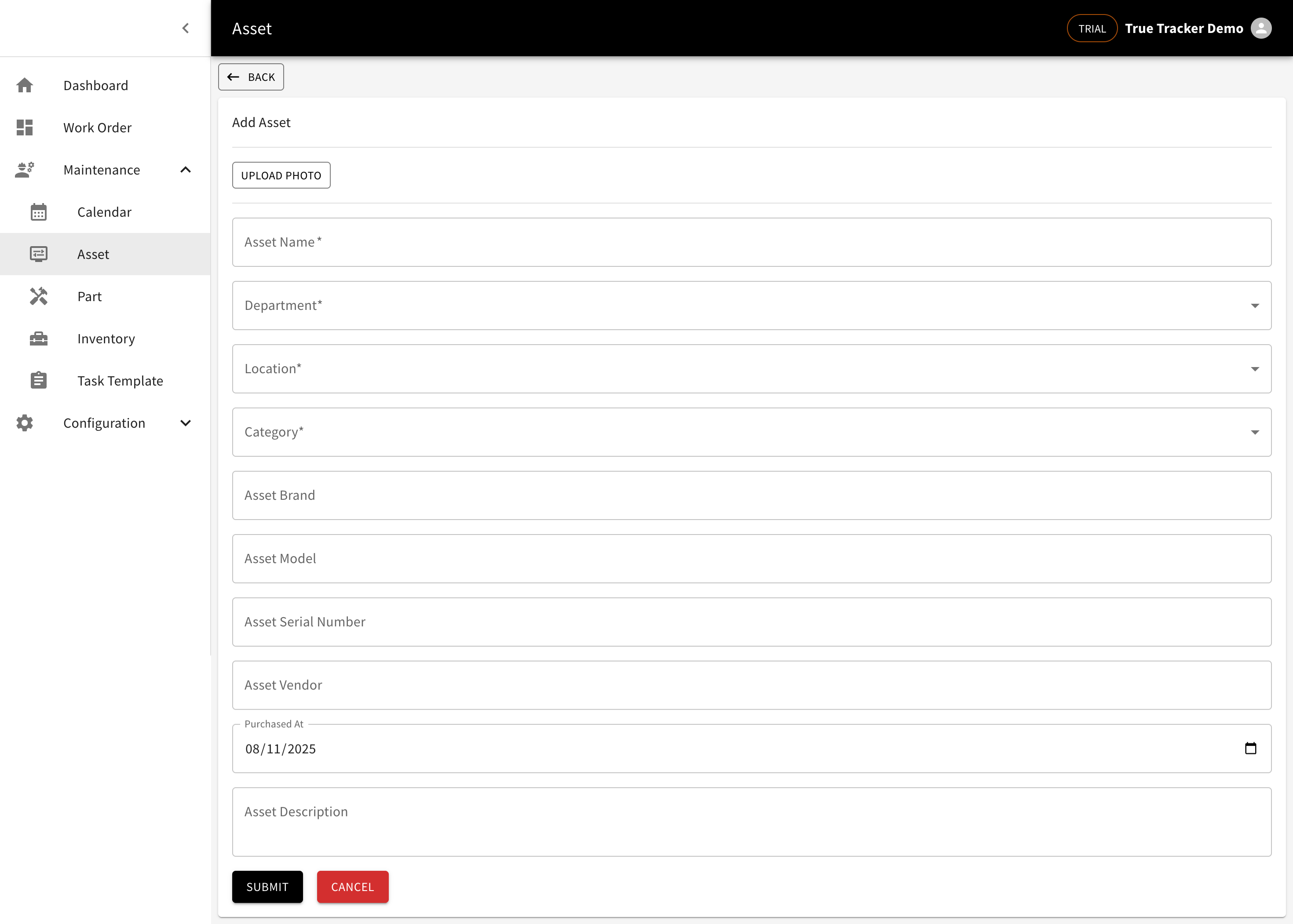
The Create Asset form allows you to register new assets in your True Tracker system.

The Create Asset form showing the fields for registering a new asset.
Form Fields
| Field | Description | Required | Example |
|---|---|---|---|
| Upload Foto | Asset image for identification | No | Upload image file |
| Asset Name | Name/description of the asset | Yes | "Generator Unit A" |
| Department | Select department | Yes | "Engineering" |
| Location | Select current location | Yes | "Building A - Floor 1" |
| Category | Select asset category | Yes | "Equipment" |
| Asset Brand | Brand/manufacturer of the asset | No | "Honda" |
| Asset Model | Model number or name | No | "EU2200i" |
| Asset Serial Number | Serial number of the asset | No | "SN123456789" |
| Purchased At | Purchase date | No | "2024-01-15" |
| Asset Description | Detailed description of the asset | No | "Backup power generator for emergency use" |
View Asset Details
Click the View button next to any asset to see comprehensive asset information.

The Asset Detail screen showing comprehensive information about the selected asset.
Edit Asset
Click the Edit button next to any asset in the list to modify their information. The edit form contains the same fields as the create form.

The Edit Asset form showing the fields for modifying asset information.
QR Code Generation
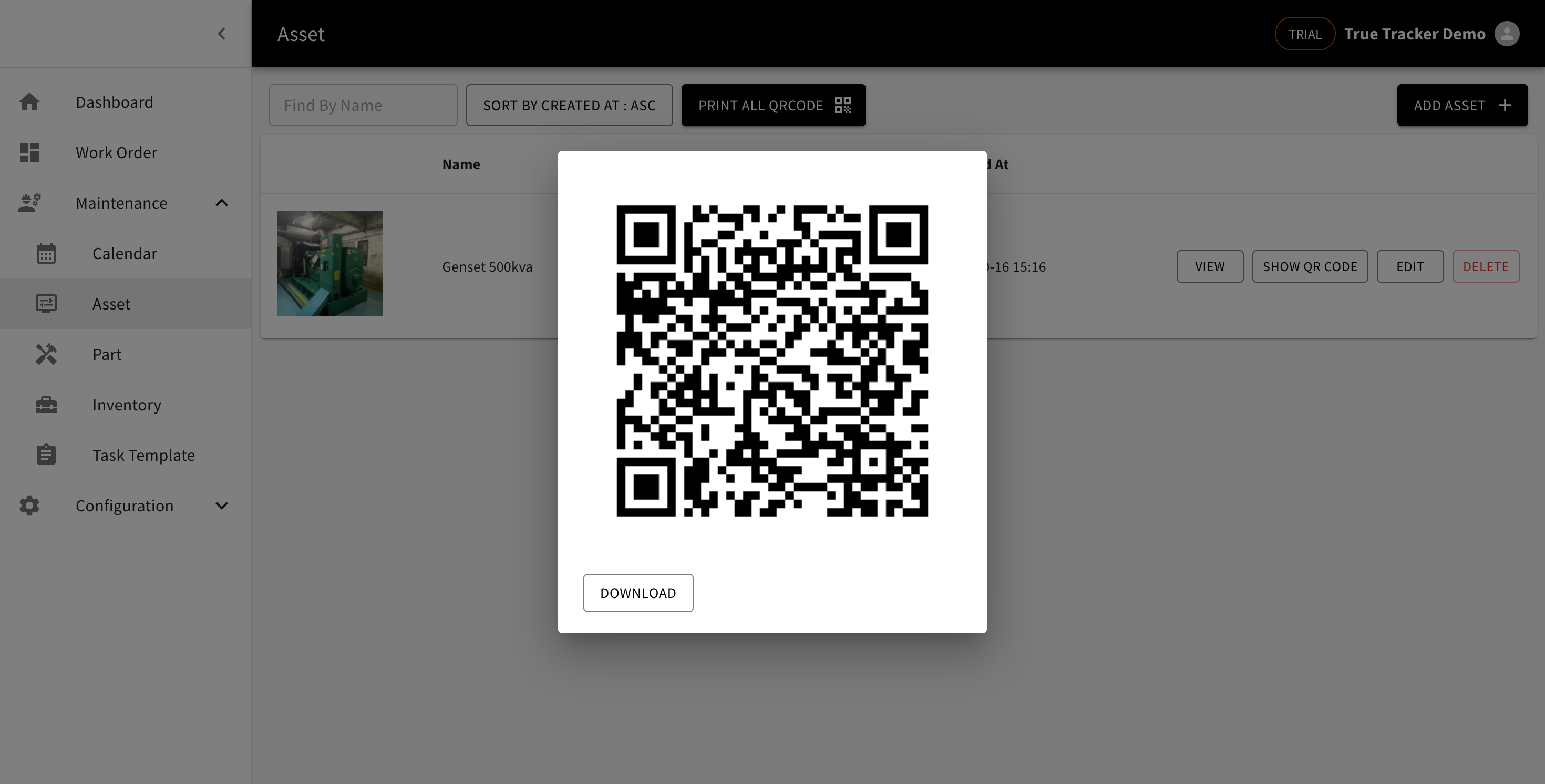
Click the Show QR code button to generate and display a QR code for mobile app scanning.

The QR Code display screen showing the generated QR code for mobile scanning.
Delete Asset
Click the Delete button to remove an asset from the system.

The Delete Asset confirmation popup asking for confirmation before removing the asset.