Calendar Management
Comprehensive calendar administration for scheduling, tracking, and managing maintenance activities in True Tracker.
Overview
Calendar Management allows administrators to schedule maintenance activities, view work orders in calendar format, track maintenance schedules, and manage organizational maintenance planning within True Tracker.
Accessing Calendar Management
- Sign in with appropriate privileges
- Navigate to Maintenance → Calendar
Note: Calendar Management requires maintenance or administrator permissions.
Calendar List Screen
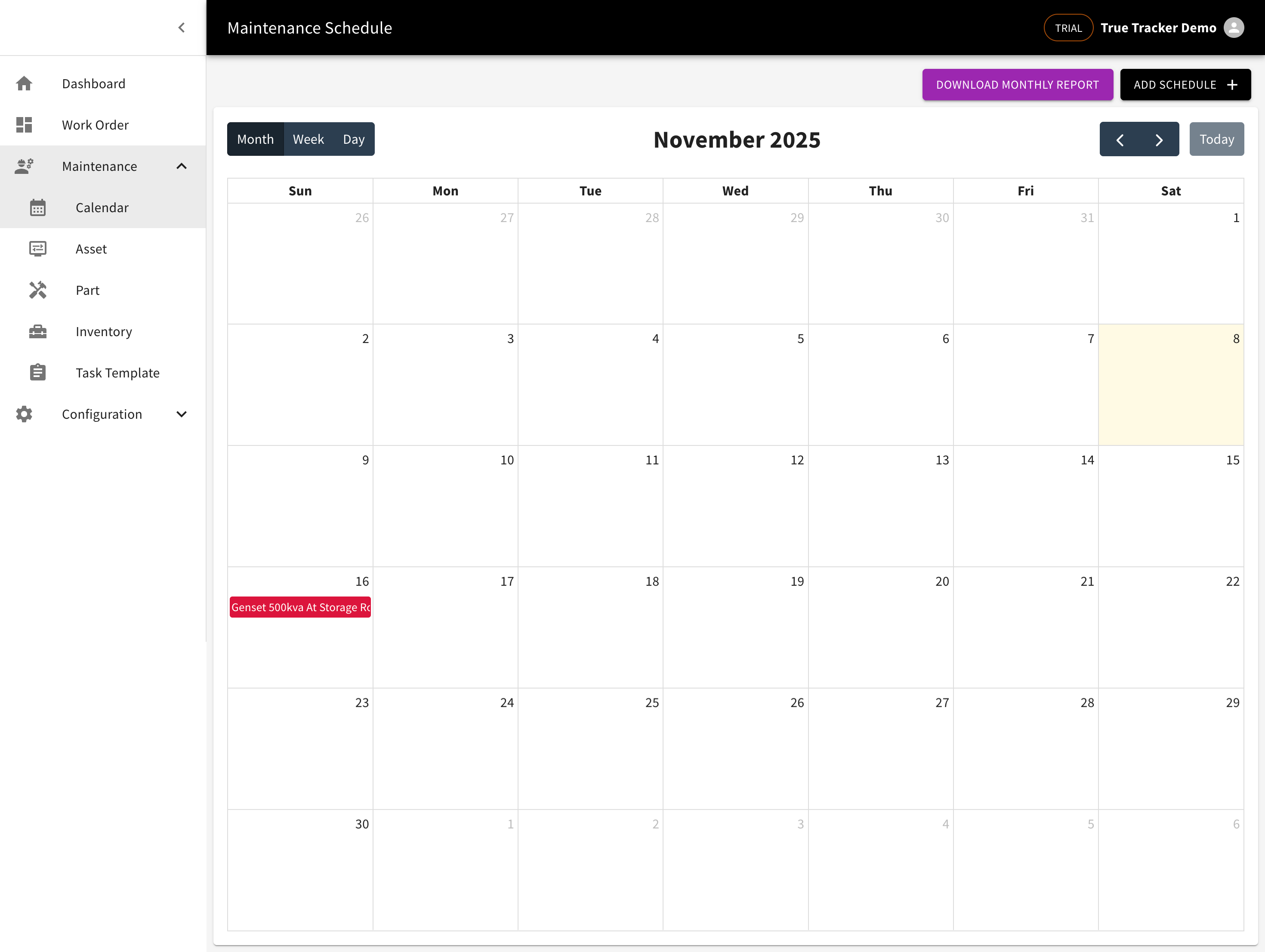
The Calendar List is your main hub for viewing and managing all scheduled maintenance activities in your True Tracker system. This screen displays maintenance events in a calendar format with monthly, weekly, and daily views.

The Calendar Management screen showing scheduled maintenance activities in calendar format.
What You'll See
| Element | Description | Example |
|---|---|---|
| Download Monthly Report | Generate monthly maintenance report | PDF report download |
| Calendar View | Monthly calendar grid showing dates | Current month display |
| Scheduled Events | Maintenance activities on specific dates | Work orders, inspections |
| Event Details | Brief information about each event | Asset name, maintenance type |
| Navigation | Month/year navigation controls | Previous/Next month arrows |
| View Options | Different calendar view modes | Month, Week, Day views |
| Today Indicator | Highlights current date | Highlighted current day |
Calendar Navigation
Month Navigation
- Use arrow buttons to navigate between months
- Click on month/year to select specific periods
- Today button to return to current date
View Options
- Month View: Full monthly calendar with all events
- Week View: Weekly schedule with detailed time slots
- Day View: Single day detailed schedule
Event Information
Event Display
- Events appear as colored blocks on calendar dates
- Different colors may represent different event types
- Click on events to view detailed information
Event Types
- Scheduled Maintenance: Regular maintenance activities
- Work Orders: Assigned maintenance tasks
- Inspections: Scheduled equipment inspections
- Preventive Maintenance: Routine maintenance schedules
Available Actions
Calendar Actions:
- Add Schedule - Schedule new maintenance activity
- View Event Details - See comprehensive event information
- Edit Event - Modify scheduled activities
- Delete Event - Remove scheduled activities
Navigation Actions:
- Previous Month - Navigate to previous month
- Next Month - Navigate to next month
- Today - Return to current date
- Change View - Switch between month/week/day views
How to Use the Calendar
- View Scheduled Activities: The calendar automatically displays all scheduled maintenance when you access it
- Navigate Dates: Use navigation controls to move between different time periods
- Switch Views: Change between month, week, and day views for different levels of detail
- Manage Events: Click on events to view, edit, or manage scheduled activities
- Schedule New Activities: Use Add Schedule functionality to add new maintenance schedules
- Download Reports: Generate monthly maintenance reports for documentation
Calendar Features
Visual Indicators
- Color Coding: Different colors for different types of maintenance
- Event Density: Multiple events on single dates are clearly displayed
- Time Information: Start and end times for scheduled activities
- Recurring Events: Visual indication of repeating maintenance schedules
Integration Features
- Work Order Integration: Calendar events linked to work order system
- Asset Integration: Events associated with specific assets
- Team Assignment: Events assigned to specific maintenance teams
- Notification System: Reminders and alerts for upcoming maintenance
Add Schedule
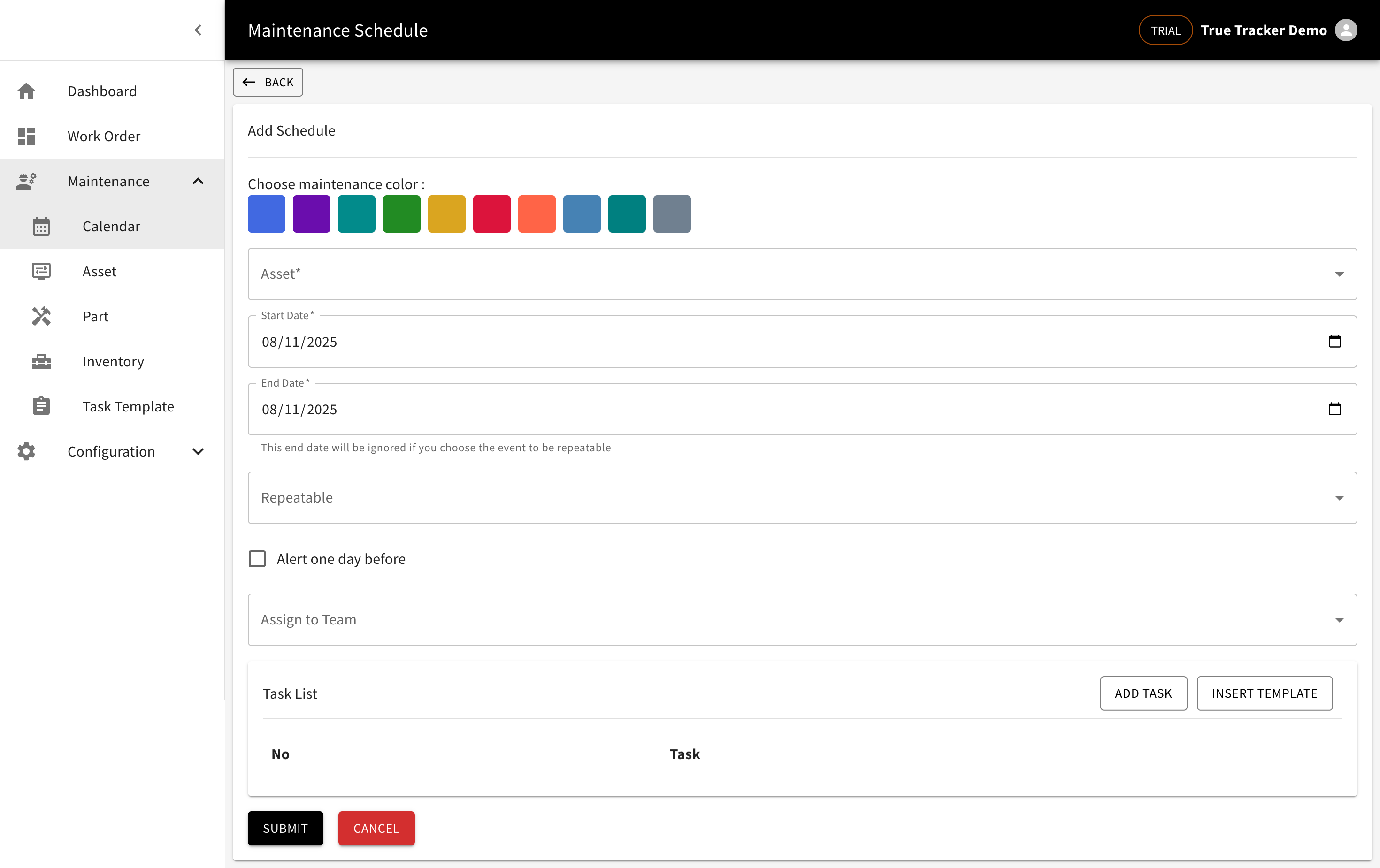
The Add Schedule form allows you to create new maintenance schedules in your True Tracker system. Click the ADD SCHEDULE button from the Calendar to open this form.

The Add Schedule form showing the fields for creating a new maintenance schedule.
Form Fields
| Field | Description | Required | Example |
|---|---|---|---|
| Asset | List from user asset | Yes | "Generator Unit A" |
| Start Date | When the schedule begins | Yes | "2025-01-15" |
| End Date | When the schedule ends (ignored if repeatable) | No | "2025-12-31" |
| Repeatable | Frequency options | No | "None", "Weekly", "Monthly" |
| Alert one day before | Checkbox for notification | No | ✓ Checked/Unchecked |
| Assign to Team | List of Teams | Yes | "Maintenance Team A" |
| Task list | List with Add Task and Insert template options | No | Task management |
Form Actions
- Submit - Creates the new maintenance schedule
- Cancel - Returns to Calendar without saving
View Schedule Detail
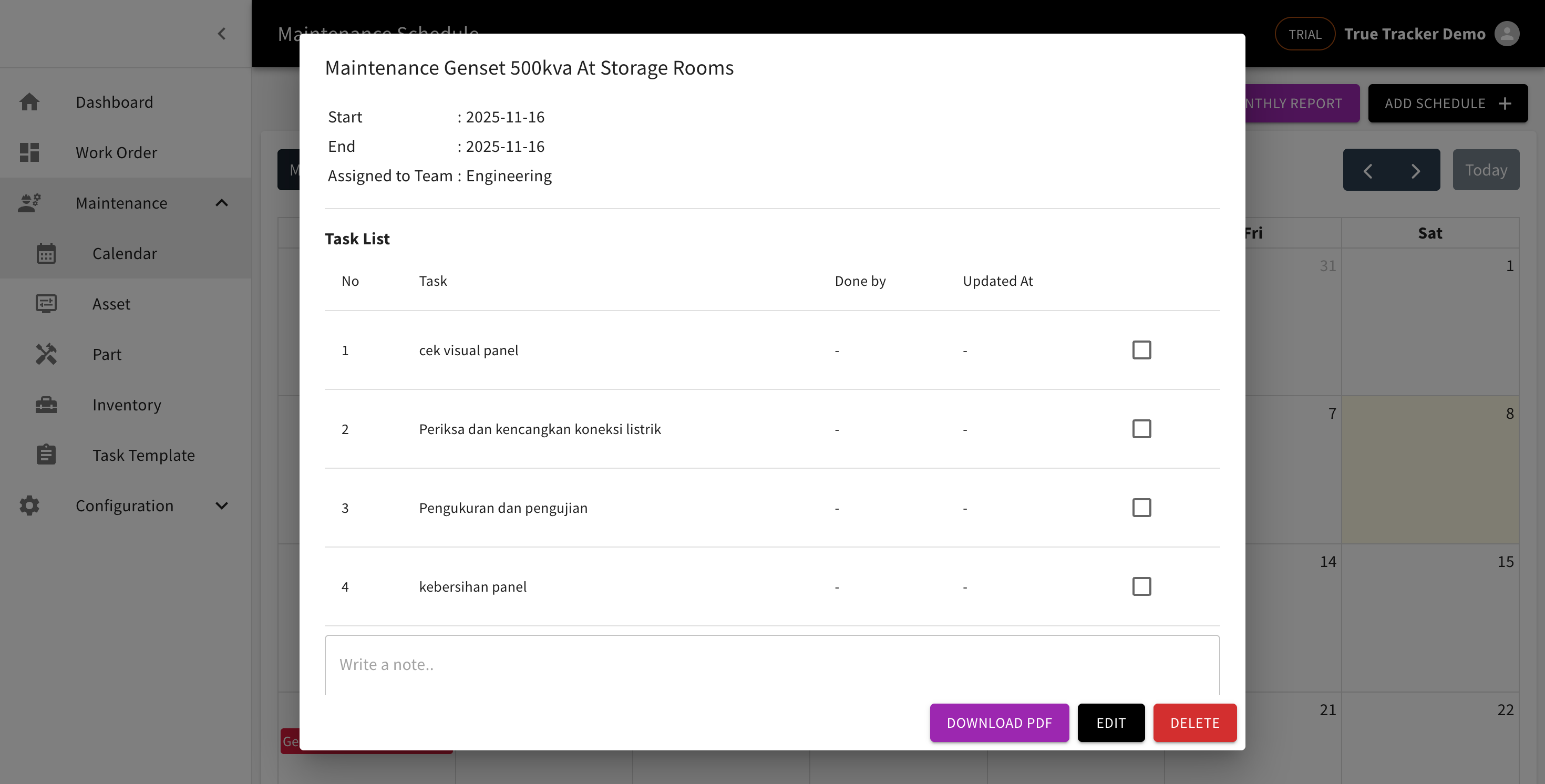
Click on any scheduled event in the calendar to view detailed information about the maintenance schedule. A popup will display comprehensive schedule details.

The Schedule Detail popup showing comprehensive information about the selected maintenance schedule.
Schedule Information Displayed
- Asset: Details about the asset being maintained
- Start Date: When the schedule begins
- End Date: When the schedule ends
- Repeatable: Frequency (None, Weekly, Monthly)
- Alert one day before: Notification setting
- Assign to Team: Responsible team
- Task list: Associated tasks and templates
Available Actions from Detail View
- Edit Schedule - Modify schedule information
- Delete Schedule - Remove the schedule
- Create Work Order - Generate work order from schedule
- View History - See past maintenance activities
- Close - Close the detail popup
How to View Schedule Details
- Navigate to the calendar view
- Click on any scheduled event (colored block on calendar)
- The detail popup will automatically appear
- Review all schedule information
- Use action buttons to manage the schedule
- Click Close or outside the popup to return to calendar