Asset
The equipment and machines you maintain, with their location and maintenance history.
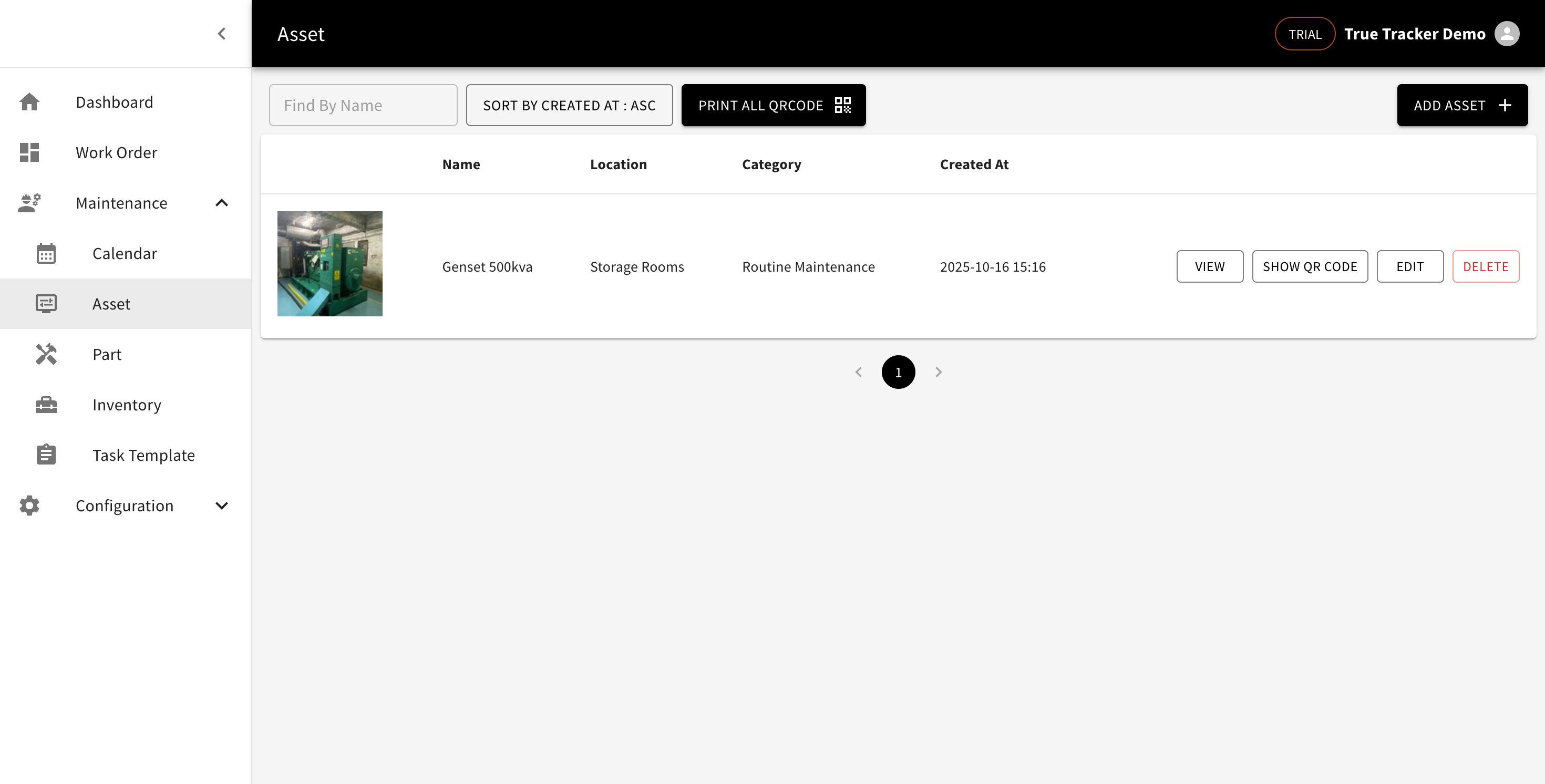
Asset List
Go to Maintenance → Asset. The list shows a photo, name, location, category, and creation date. Search by name, or click Print All Qrcode to download a PDF of every asset's QR code at once.
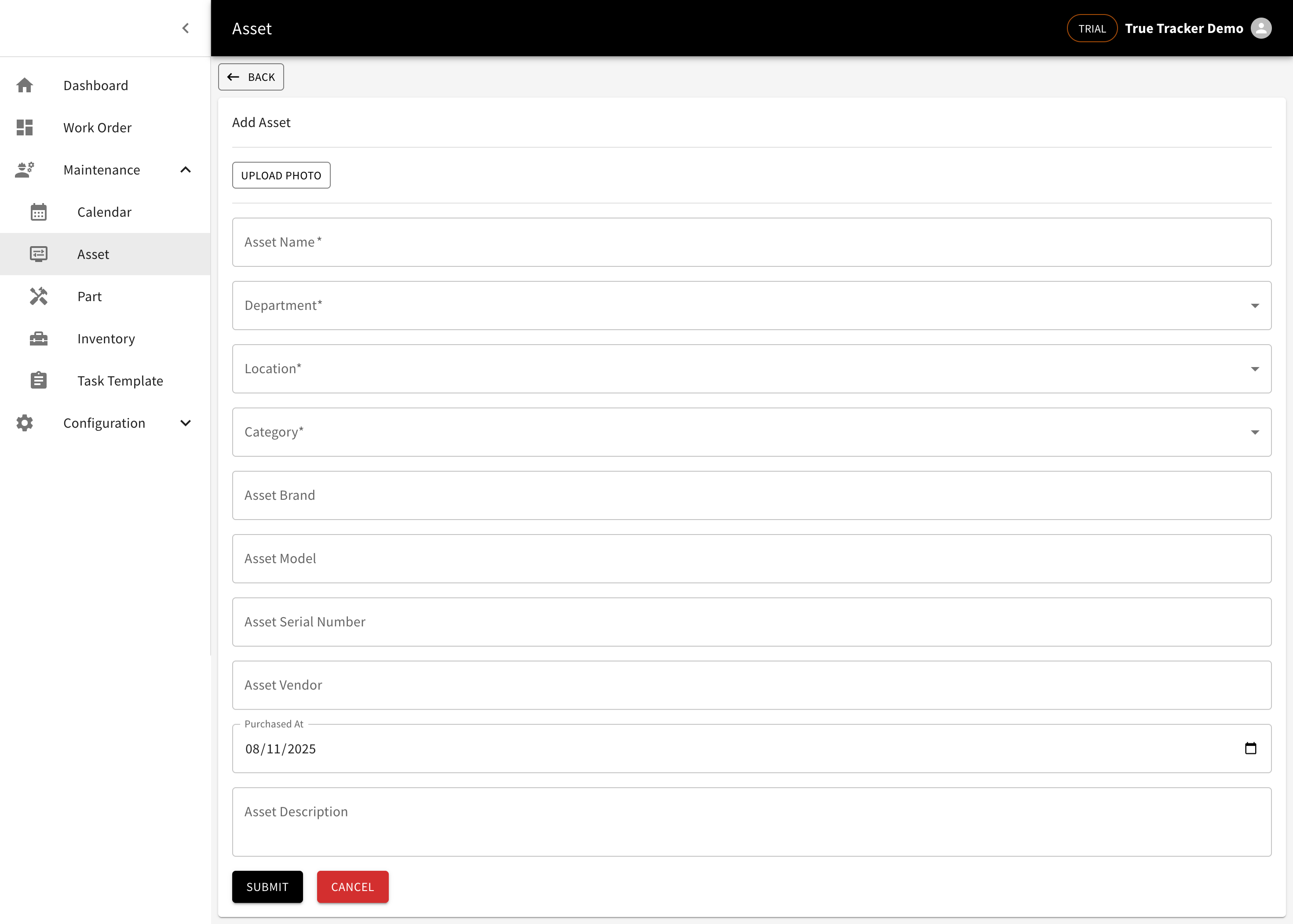
Adding an Asset
Click Add Asset, then fill in a photo, name, department, location, category (all required), brand, model, serial number, vendor, purchase date, a location pin on the map, and a description.
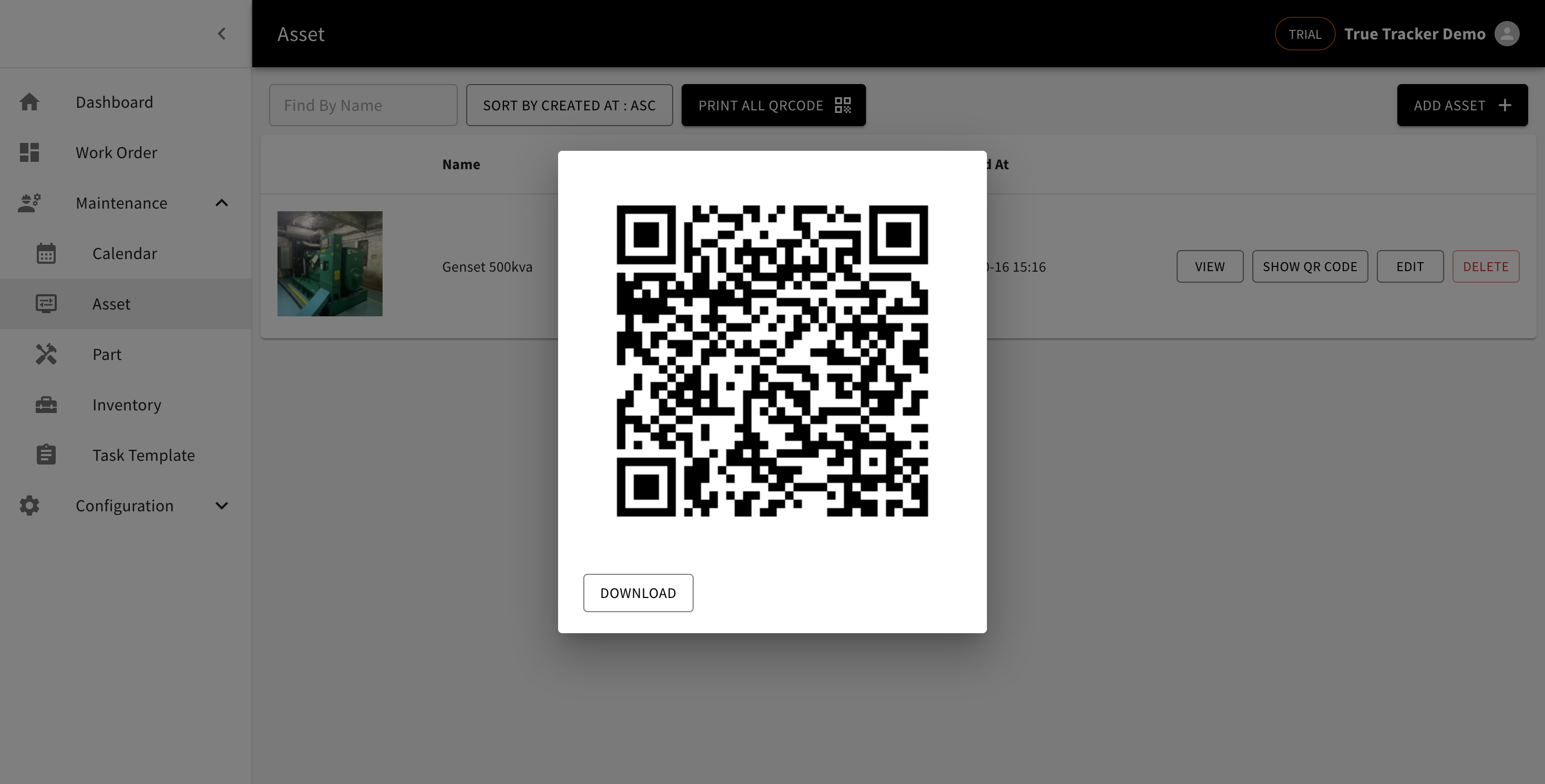
Per-Asset QR Code
Click Show QR Code on an asset to open its code, then Download to save it. Stick this on the physical asset — scanning it opens a detail page (sign-in required) showing the asset's info, its location on a map, and a maintenance task checklist for that asset, with previous/next date navigation. Handy for field technicians who scan the asset right on the spot.
Viewing, Editing, Deleting
Click View for the full detail, Edit to change it, or Delete to remove it (with confirmation).