Work Order
A list of every work order at your company, from the moment it's raised to the moment it's done.
Creating a Work Order
Work orders are created from the mobile app, not from the web dashboard — here you can only view, filter, and delete them.
Filtering and Searching
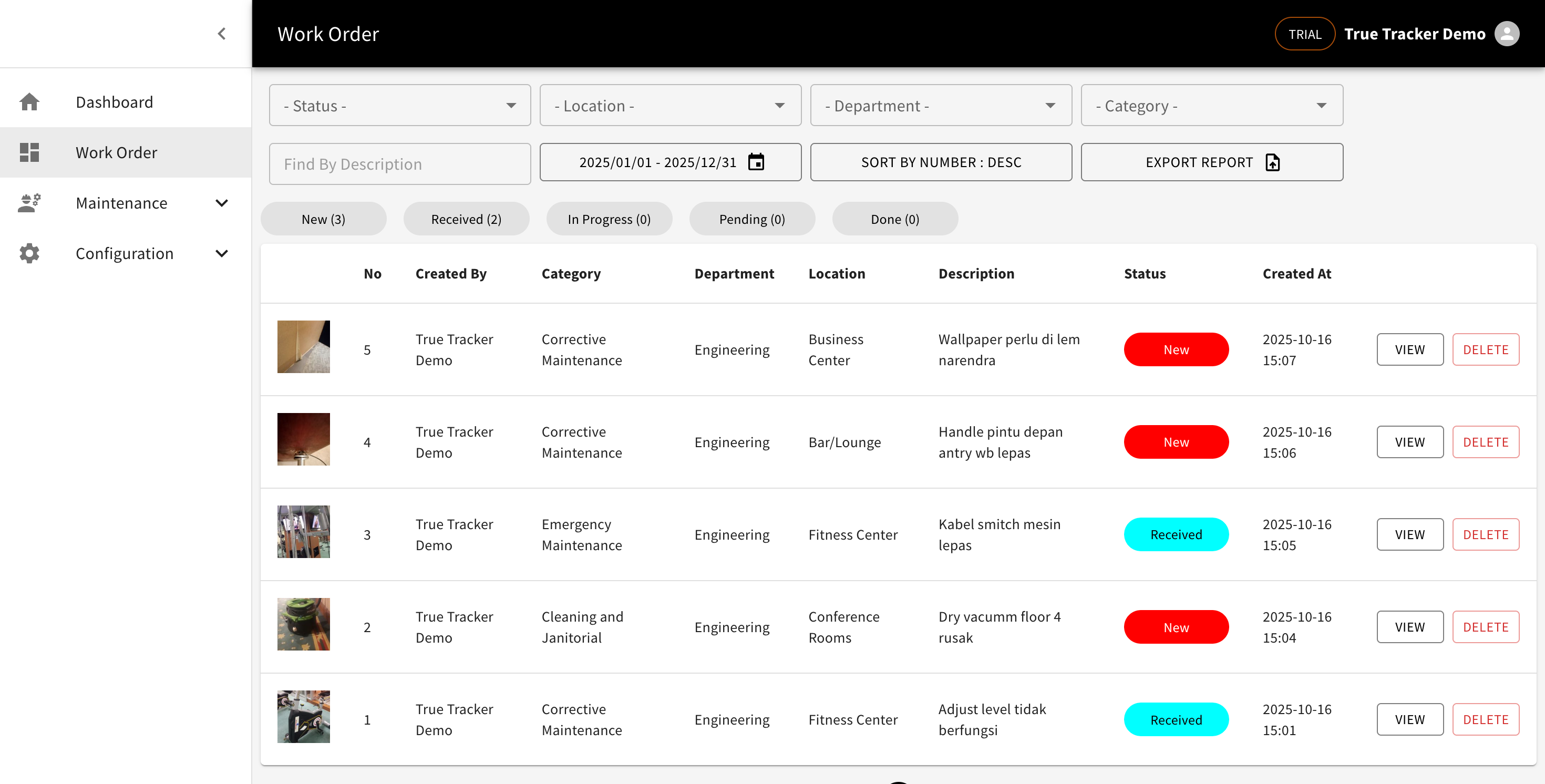
Available filters: Status, Location, Department, Category, a description search box, and a date range. The summary chips above the table show the count per status (New, Received, In Progress, Pending, Done) — click one to filter straight to that status.
List Columns
| Column | What it shows |
|---|---|
| (photo) | Thumbnail of the attached photo |
| No | The work order's sequence number |
| Created By | Who created it |
| Category / Department / Location | How the work order is classified |
| Description | A short note on the issue |
| Status | New, Received, In Progress, Pending, or Done |
| Created At | When it was created |
Viewing a Detail
Click View to open the full detail: priority, category, department, who created and received it, the description, attached photos, and the status-change history. Click the status chip to change it directly from here (to Received, Pending, In Progress, or Done). Once completed, a separate section shows who finished it, when, a completion remark, and proof photos.
Exporting a Report
Click Export Report to download the currently filtered data as XLS or PDF.
Deleting
Click Delete on the row you want removed, then confirm.