Request Portal
A Request Portal is a public report form you open by scanning a QR code — good for sticking on a physical location so anyone (a guest, a tenant, field staff) can report an issue without needing a True Tracker account. Reports that come in show up under Inbound Request.
Creating a Portal
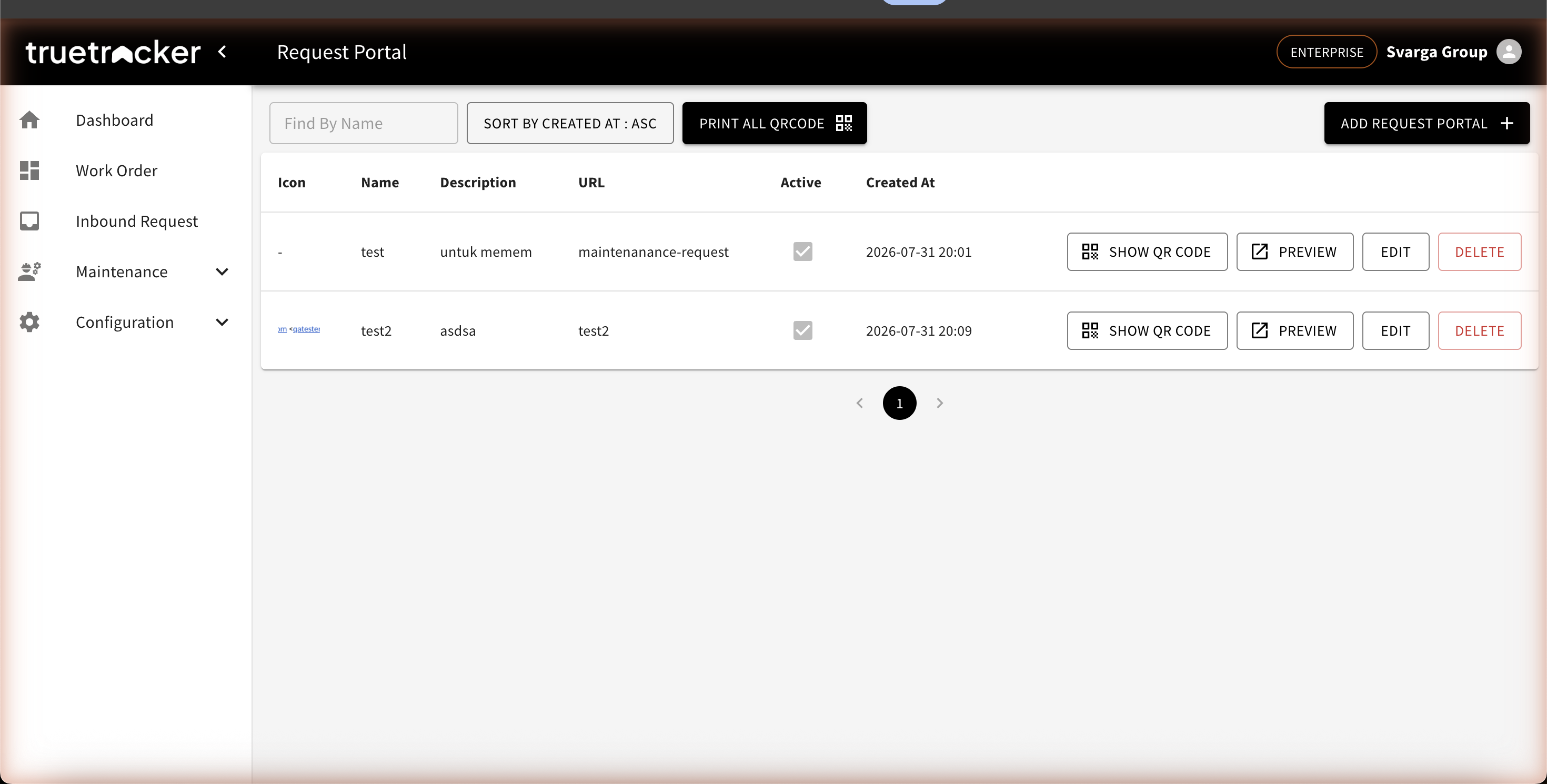
Go to Configuration → Request Portal, then click Add Request Portal. Fill in a name, description, and the portal's URL (the last part of its public link). A portal can be turned on or off with the Active column.
QR Code
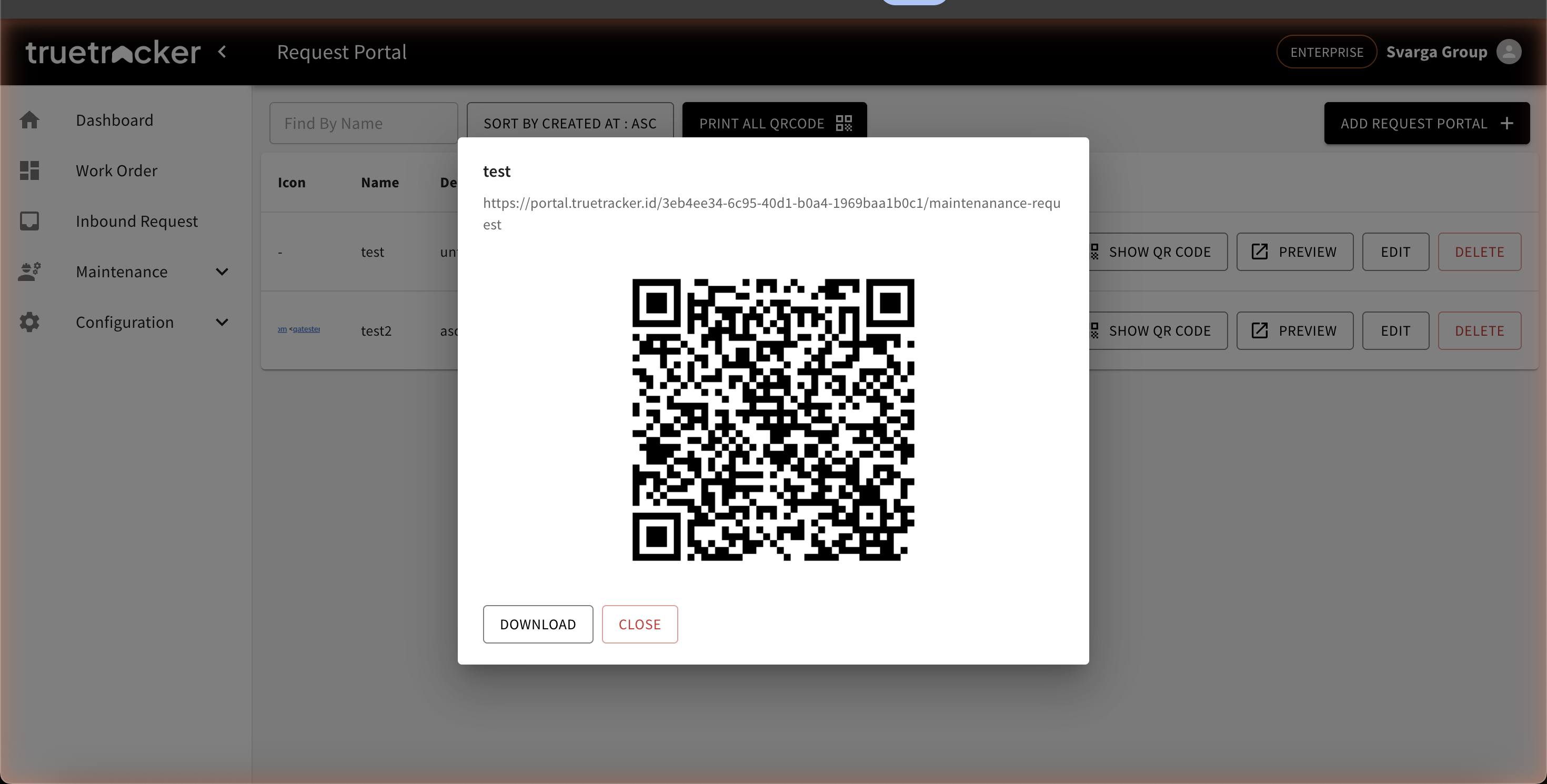
Click Show QR Code on a portal to open its QR code, along with its full public link. Click Download to save the QR image, then print and post it wherever it's needed. To download every portal's QR code at once, use the Print All QRCode button above the list.
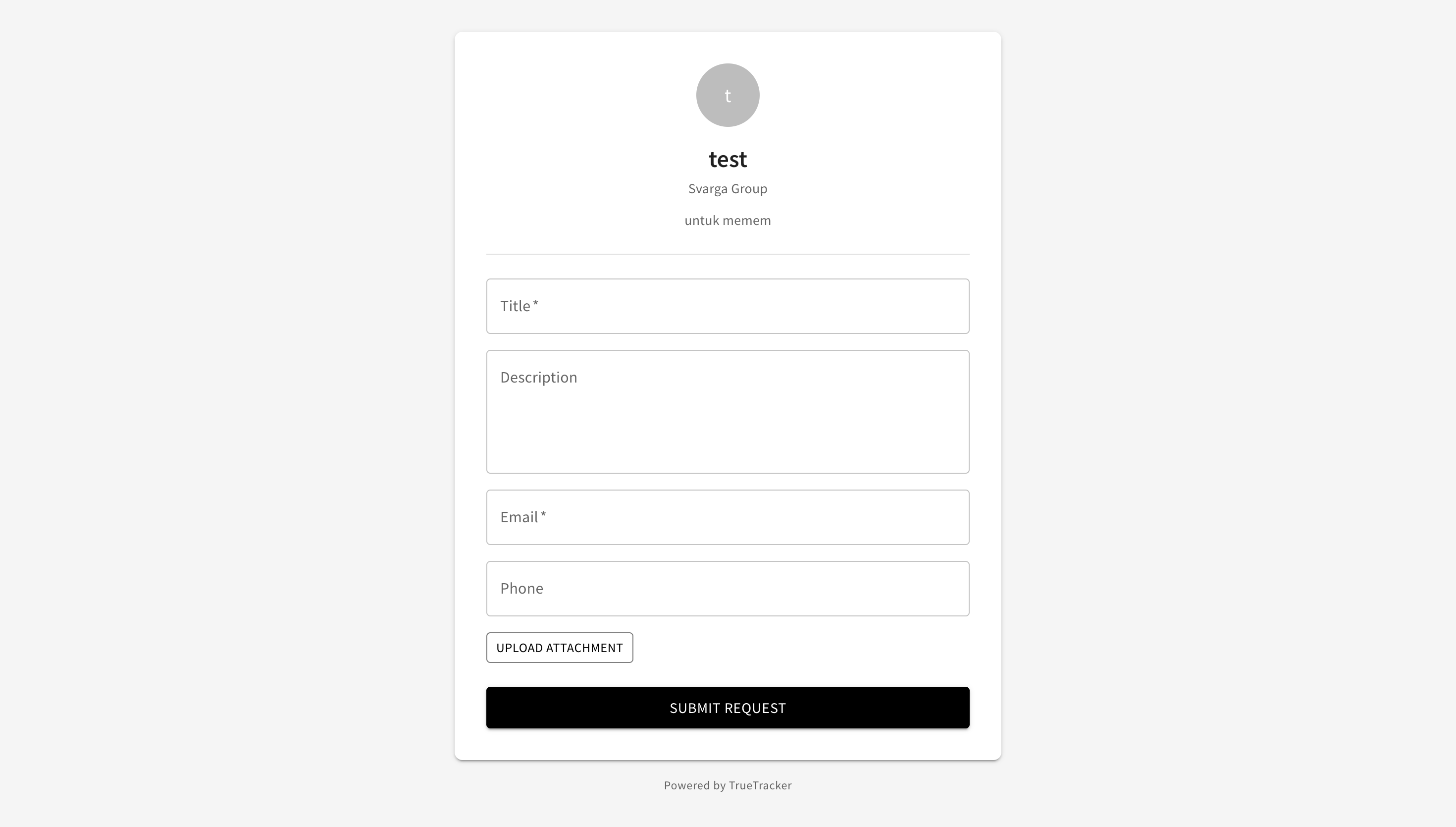
The Preview button opens the public form in a new tab, exactly as a reporter would see it after scanning the QR code.
What the Reporter Sees
The public page shows your company's logo and name, the portal's name and description, then a simple form: Title (required), Description, Email (required), Phone, and an Upload Attachment option for a photo. There's no sign-in — anyone with the link or QR code can fill it out and submit right away.
Editing and Deleting
Click Edit to update the name, description, URL, or active status. Click Delete to remove the portal — any link or QR code already handed out will stop working once the portal is deleted.