Work Orders
A work order is one job that needs doing — something broken, something that needs checking, something someone asked for. It's the screen opened most often, because this is where the everyday work actually gets recorded: who knows about the problem, who is handling it, and what proves it's done.
Opening the Work Order List
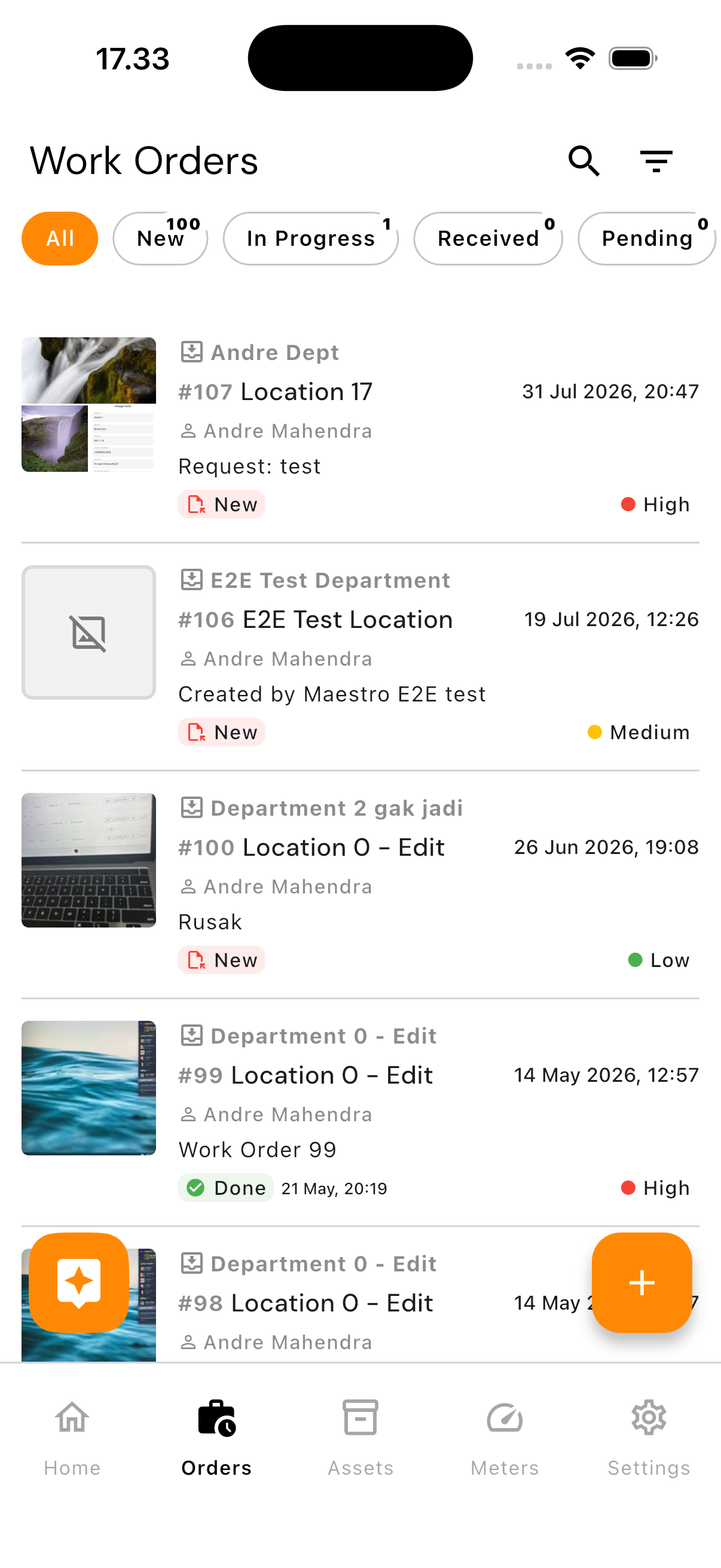
Tap the Orders tab at the bottom of the screen.
Reading the List
Chips across the top filter by status, each with its own count: All, New, In Progress, Received, Pending. Search and filter icons sit in the top right.
Each row is dense enough to tell you what you need at a glance: an attached photo if there is one, the department, its number and location, who raised it, what they asked for, its status, a coloured priority, and the date it was created. A work order marked Done shows its completion date separately from its creation date — useful for seeing how long a job actually took.
Creating a Work Order
Tap the add button on the list. The fields:
| Field | Description |
|---|---|
| Department | The responsible department. For most users this is filled in automatically with their own and cannot be changed; users with the Admin role can choose any department |
| Category | The kind of work |
| Location | Where the problem is |
| Priority | Low, Medium, or High |
| Description | What's wrong |
Photos can be attached right from this form — the clearer the photo, the fewer follow-up questions from whoever picks it up.
A new work order always starts with the New status.
Editing and Assigning
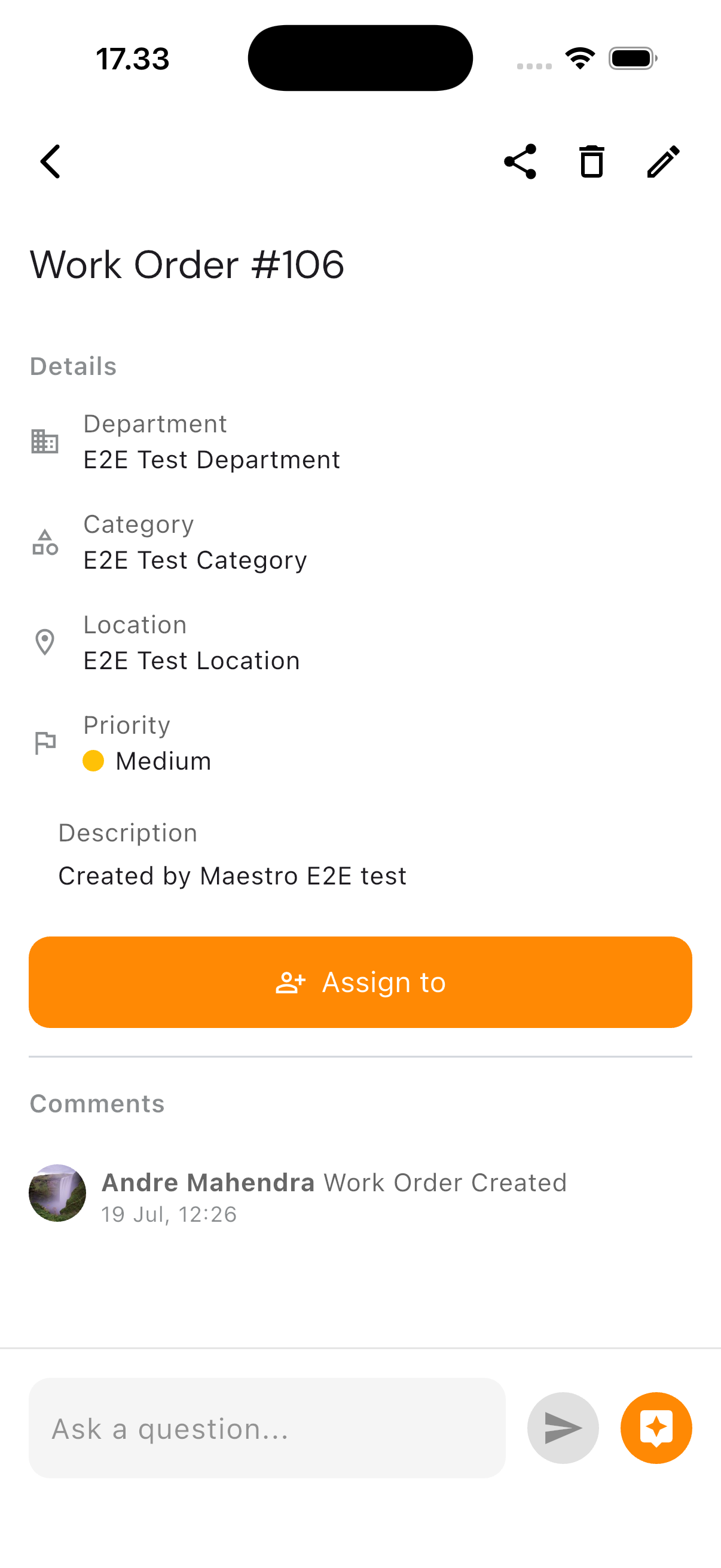
Open a work order from the list to see its detail. Tap the pencil icon to change the department, category, location, priority, and description.
The Assign to button hands the work order to someone. Before it's assigned, the job exists in the system but isn't anyone's responsibility yet.
Changing Status
Status moves from New → Received → In Progress → Pending (if stalled) → Done.
One rule worth knowing: changing the status to Done requires at least one photo. The app treats "done" as something that needs proof, not just a claim. You can also add a short remark when changing status — useful for explaining what was actually done, especially if it differed from the original request.
Photos
The Photos section at the top of the detail screen shows every attachment as a small gallery — photos of the problem, photos proving the repair, even a screenshot of a conversation if it's relevant to the job. Tap one to view it full size.
Comments
Below the details is a single stream called Comments. It isn't two separate sections — automatic events like "Work Order Created" and comments you write yourself appear in the same place, in chronological order. Type in the field at the bottom and tap the send icon to add a comment.
AI Analysis
The orange star-shaped icon next to the comment field opens AI Analysis — an automatically generated summary of the work order, built from the data already on it. Tap the copy icon to copy the result. It's a way to get up to speed quickly, not a substitute for reading the detail yourself.
Deleting
Open the work order and tap the bin icon. The app asks for confirmation first. Deleting cannot be undone.
Notifications
You receive push notifications when a work order is assigned to you and when its status changes, including while the app is closed.
Access Rights
Every user can view and create work orders. Editing the core fields (department, category, location, priority) follows each company's own permissions — if the edit button doesn't appear, your account hasn't been given that access.
Common Problems
- A photo fails to upload — check the internet connection, then retry
- Can't change status to Done — make sure at least one photo is attached
- A work order is missing from the list — pull the list down to reload, or check which status filter is active
- Department can't be changed — this is normal for most roles; only an Admin can choose a different department