Inbound Request
Where reports from outside the system land — guests, tenants, anyone who scans a QR code on-site and files a report through the public form, no True Tracker account needed.
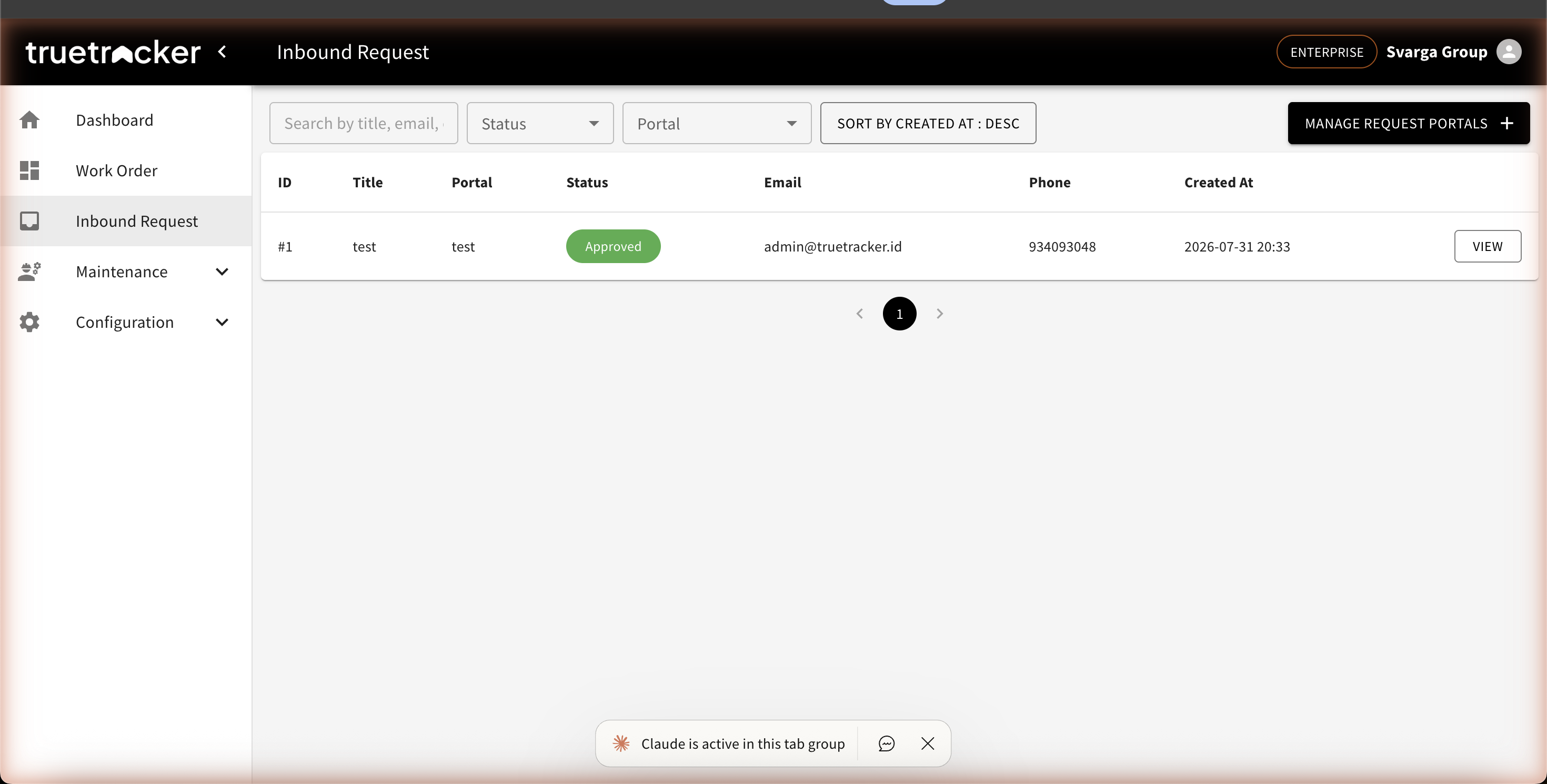
Request List
Each row shows the ID, title, the portal the report came from, its status (New, Approved, or Rejected), the reporter's email and phone, and when it came in. You can search by title/email, and filter by status or a specific portal.
The Manage Request Portals button takes you to the portal settings page — see Request Portal.
Viewing a Request
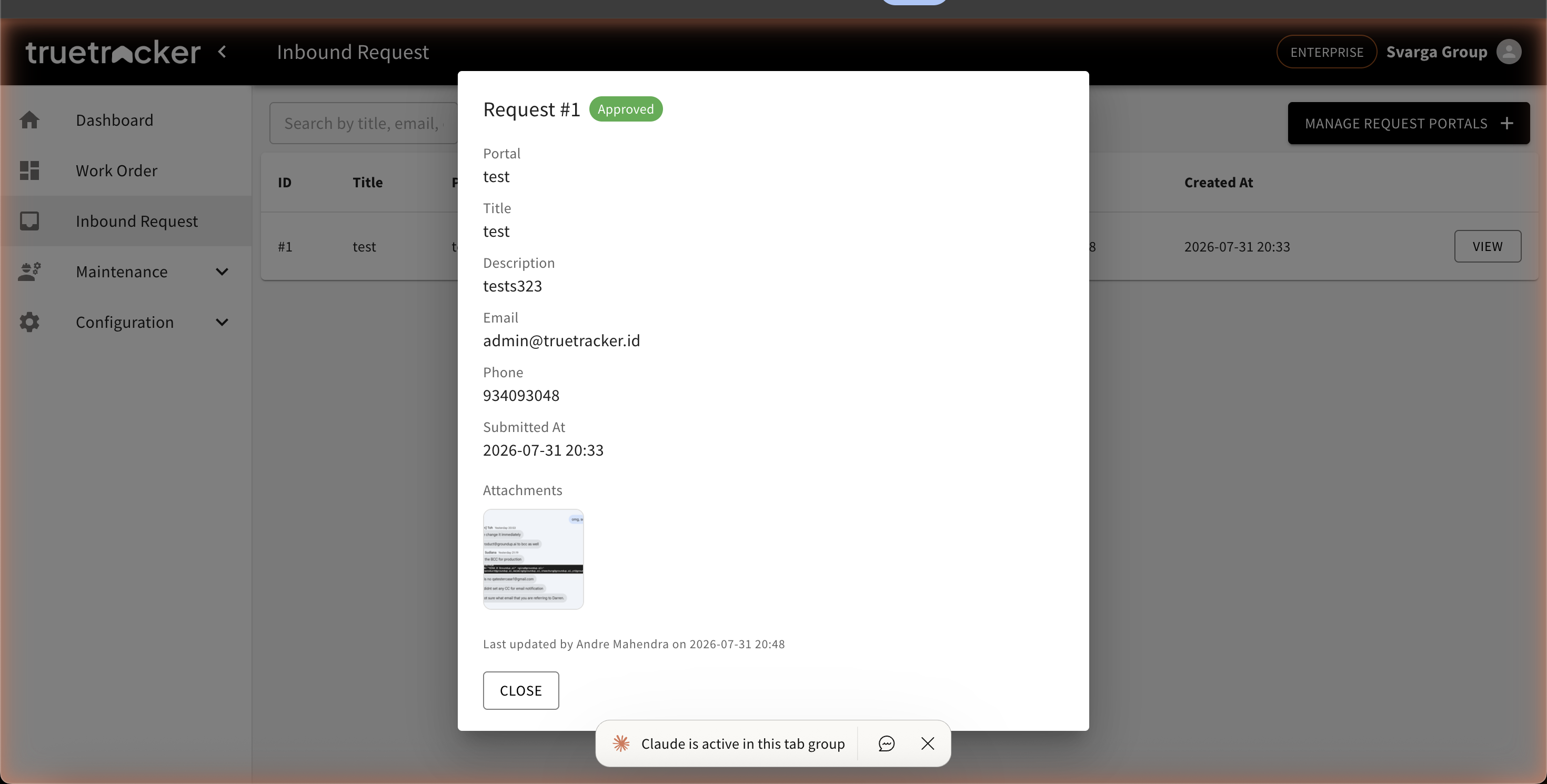
Click View on a request to open its details: title, description, email, phone, submission time, and a photo attachment if the reporter included one.
Approving a Request
Click Approve, then fill in the department, category, location, and priority (High, Medium, or Low). Approving a request immediately creates a new work order from the report's content — you don't need to retype anything.
Rejecting a Request
Click Reject, then confirm. The request's status changes to Rejected and no work order is created.