Home
The first screen after you sign in. It has one job: in ten seconds you should know whether today is quiet or whether something needs chasing.
Status Overview
The donut at the top breaks every work order down by status. The large number in the middle is the total.
| Status | What it means |
|---|---|
| New | Raised, nobody has picked it up |
| Received | A technician or team has taken it |
| In Progress | Being worked on |
| Pending | Stalled — waiting on a part, an approval, or a slot |
| Done | Finished |
The most useful number is usually not the total but Pending. A figure that keeps growing there generally means something is waiting on someone, and nobody is chasing it.
Recent Active Work Orders
The work in progress this week. Tap a row to open it, or View All for the full list.
If it reads "No active work orders", nothing is being worked on this week — which is not the same as having no work. New work orders still count in the donut above.
Upcoming Maintenance
Scheduled maintenance falling due this week: the asset, its location, the date, and how often it repeats, such as Repeats weekly or Repeats monthly.
This is the section that separates planned upkeep from emergency repair. Watched regularly, it is light work. Ignored for a few weeks, it turns into breakdowns.
Moving Around the App
Five tabs along the bottom:
| Tab | Contents |
|---|---|
| Home | This screen |
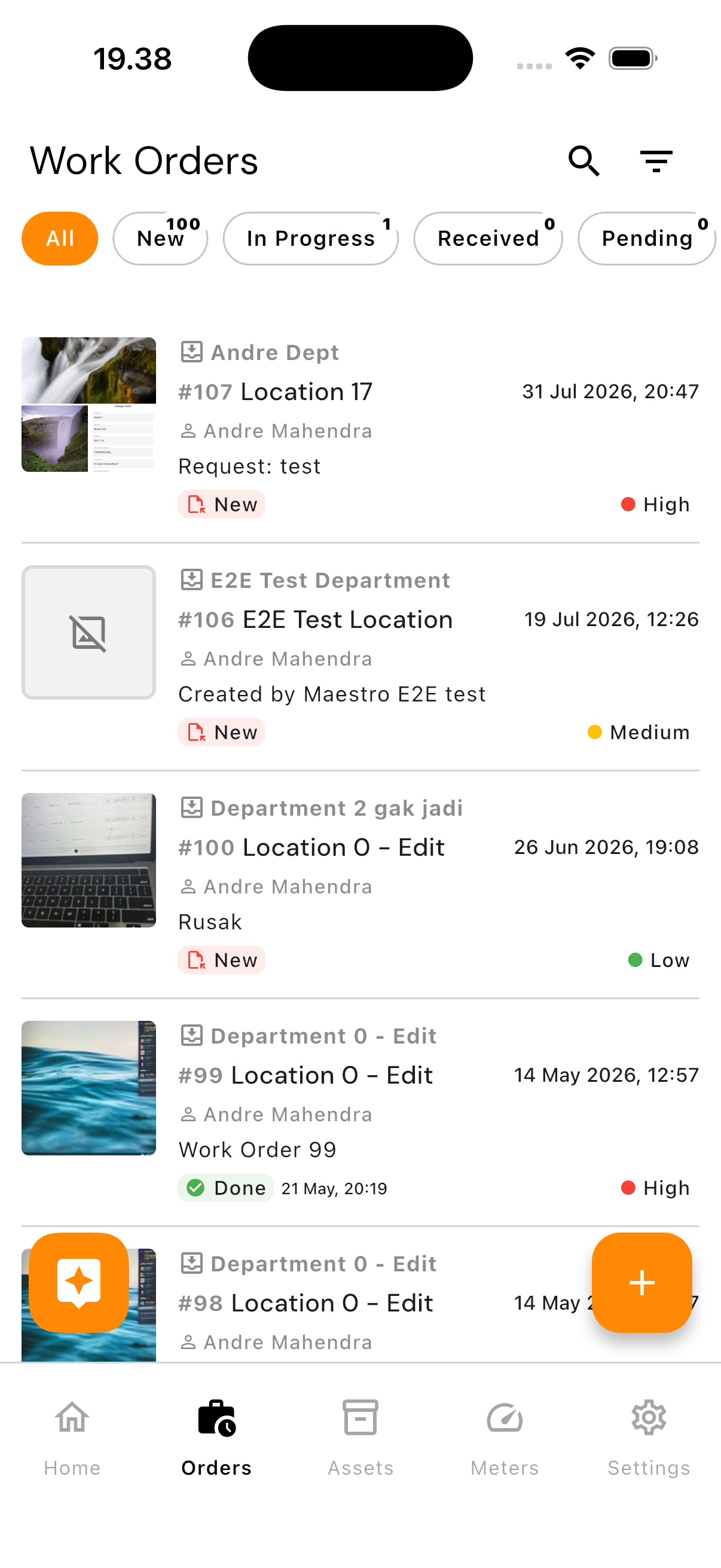
| Orders | Every work order |
| Assets | The asset list |
| Meters | The meter list |
| Settings | Data management and account settings |
Parts, vendors, inventory, teams, users, categories, departments, and locations all live inside Settings, under Manage.
Refreshing
Pull the screen down. Useful when a colleague has just changed something and you want to see it now.
Trial Period
If your company is on a trial, a banner at the top shows how much time is left.