My Profile
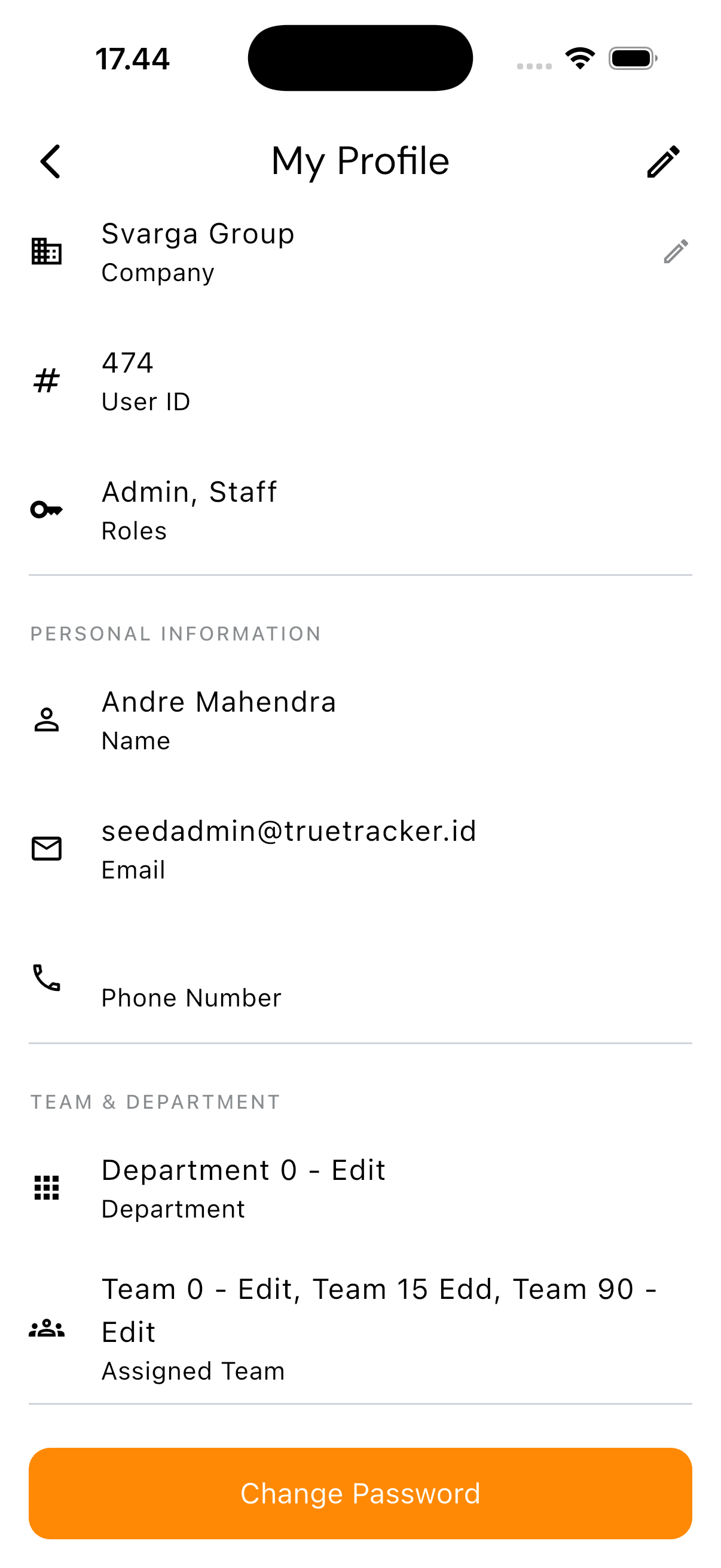
This is your identity card inside the app — mostly for looking at, with a small part you can change yourself.
Opening My Profile
Tap the Settings tab, then tap your name at the very top.
Profile Picture
Tap Change Picture below the avatar to pick a new photo from the device gallery. It uploads immediately and appears once it's done.
What You See
| Section | Contents |
|---|---|
| Company | Your company's name |
| User ID | The account's reference number, rarely needed except for support |
| Roles | The roles attached to your account — there can be more than one |
| Name, Email, Phone Number | Your personal details |
| Department, Assigned Team | The department and teams you're placed in |
Almost all of this is display only. To change your name, email, phone, department, or the profile photo stored on your account (not just the display picture), tap the pencil icon in the top right — it opens the same form as Edit User in User Management, pointed straight at your own account.
Changing the Company Name
The Company row has its own pencil icon, but only for users with the Admin role. Other users see this row with no way to change it.
Changing Your Password
The Change Password button at the bottom opens the password form. See Change Password for details.