Teams
A team is a group of people who handle work together. Assigning work to a team rather than to one name keeps it moving when somebody is on leave, off sick, or on a different shift.
Opening the Team List
Tap the Settings tab, then under Manage choose Teams. This menu item only appears for users with the Admin role — other roles, including Head, don't see it at all.
Reading the List
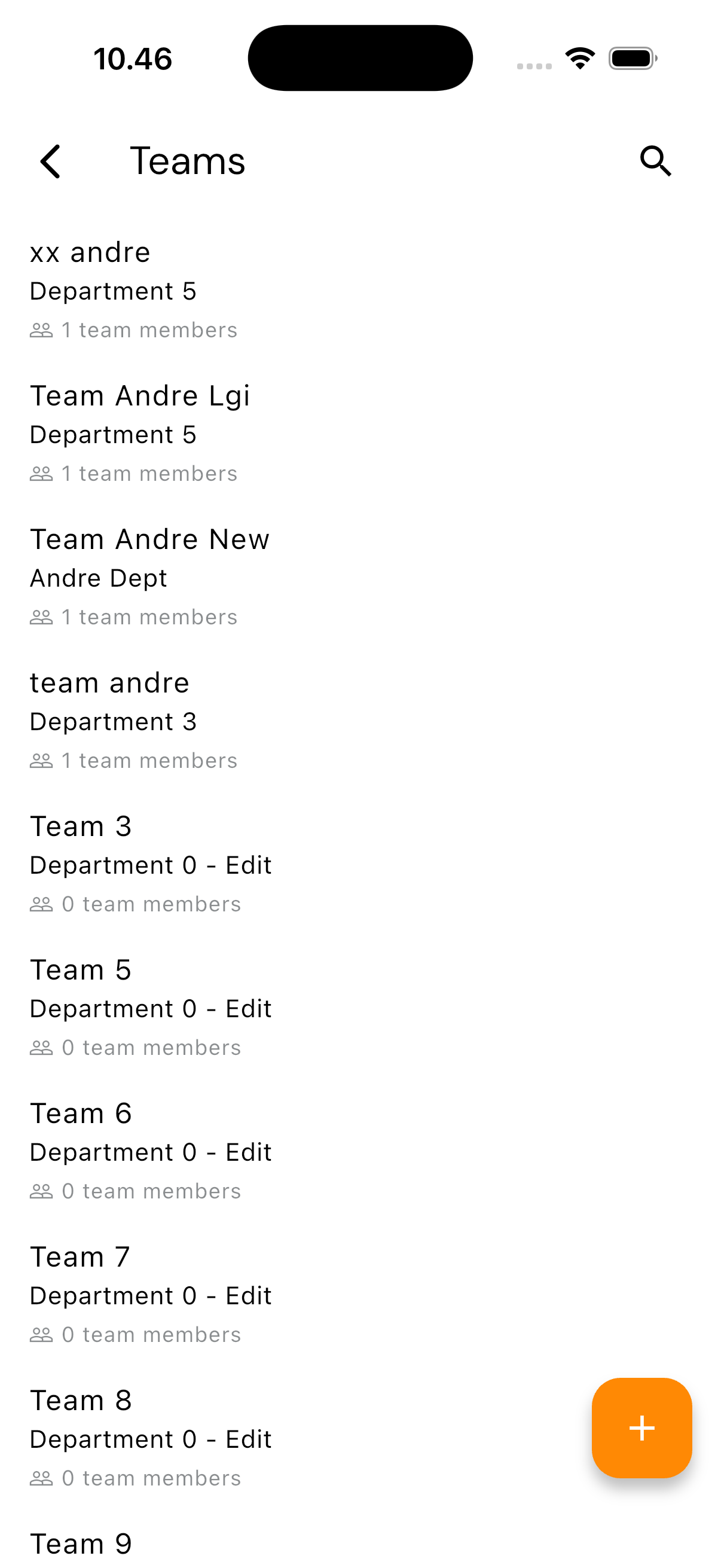
Each row shows the team name, the department it belongs to, and how many members it has.
That member count is worth watching. A team showing 0 members can still be picked when assigning work — and that work reaches essentially nobody. A list full of empty teams is usually leftover experimentation worth tidying up.
What the Detail Holds
| Section | Contents |
|---|---|
| Team name | The name that appears when assigning work |
| Department | The department the team belongs to |
| Team members | The users in it |
This team name is what appears as the Assigned Team on a maintenance schedule.
Adding a Team
Since only Admin can open this screen, adding and editing a team is limited to that role as well.
- Tap the add button
- Enter the team name — name the function, not the person. "Electrical, Building A" outlives "Budi's team"
- Save
Members come from users already registered. See User Management for adding users.
Deleting
Open the team and choose delete. The app asks for confirmation first. The members are not deleted — their accounts remain, only their membership ends.