Assets
An asset is the thing you look after: a machine, a vehicle, an electrical panel, a pump. Recording it gives every repair, maintenance schedule, and meter reading somewhere to attach itself — so that three years from now you can still answer "how many times has this machine been repaired?"
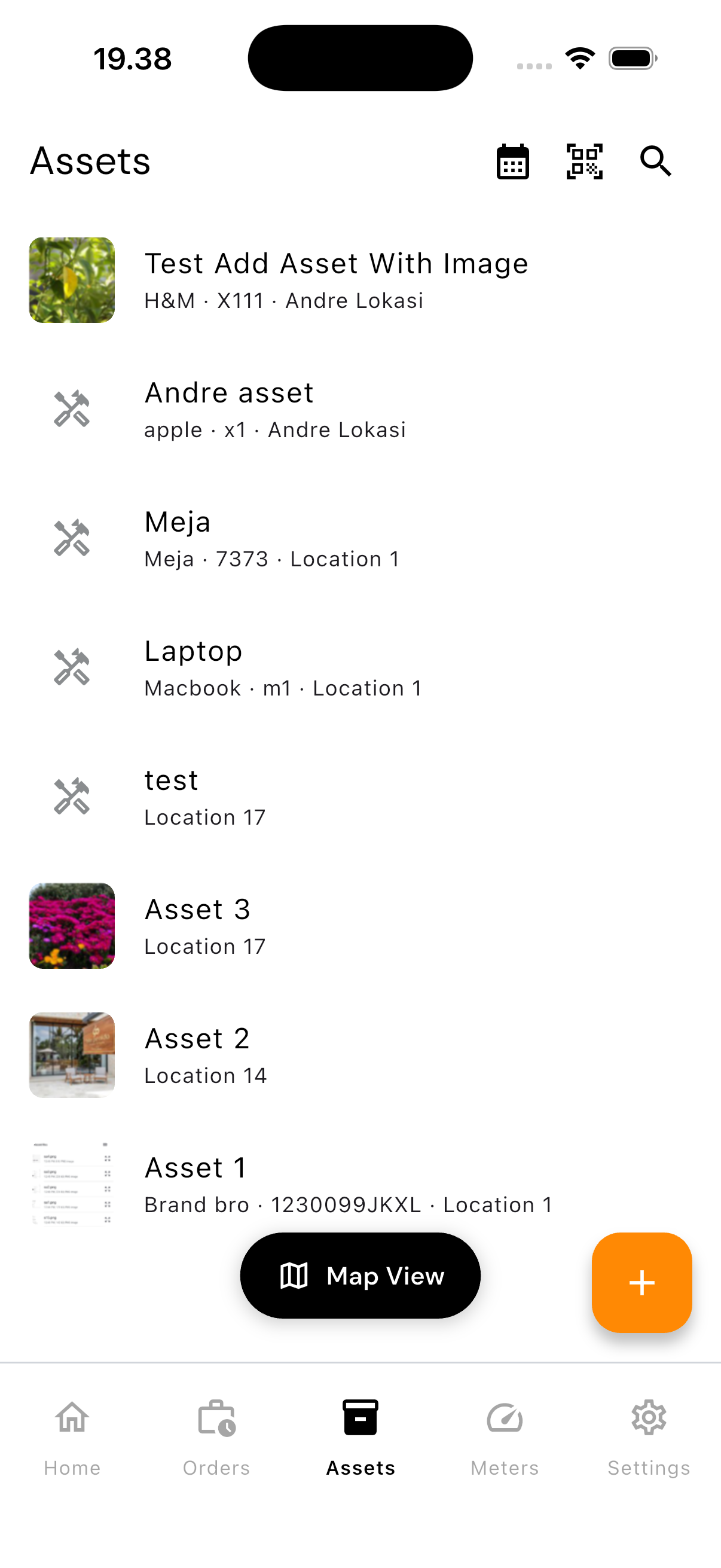
Opening the Asset List
Tap the Assets tab at the bottom of the screen.
Reading the List
Each row shows the asset photo, its name, then its brand, serial number, and location. Assets without a photo fall back to an icon — and photos help a great deal when five machines have similar names.
Three icons sit in the top right: calendar, scan, and search. The orange button in the bottom right adds a new asset.
Finding an Asset by Scanning
This is the fastest route in the field. You are standing in front of the machine, not in front of a computer.
- Tap the QR icon in the top right
- Point the camera at the label on the machine
- The app opens that asset
The code is matched against the asset's Serial Number or barcode, and it must match exactly. If nothing matches, you get "Asset not found for this barcode" — not a close guess. That is deliberate: being taken to the wrong asset is far worse than finding nothing.
QR labels printed from the web dashboard are recognised too.
Map View
Tap Map View at the bottom of the list.
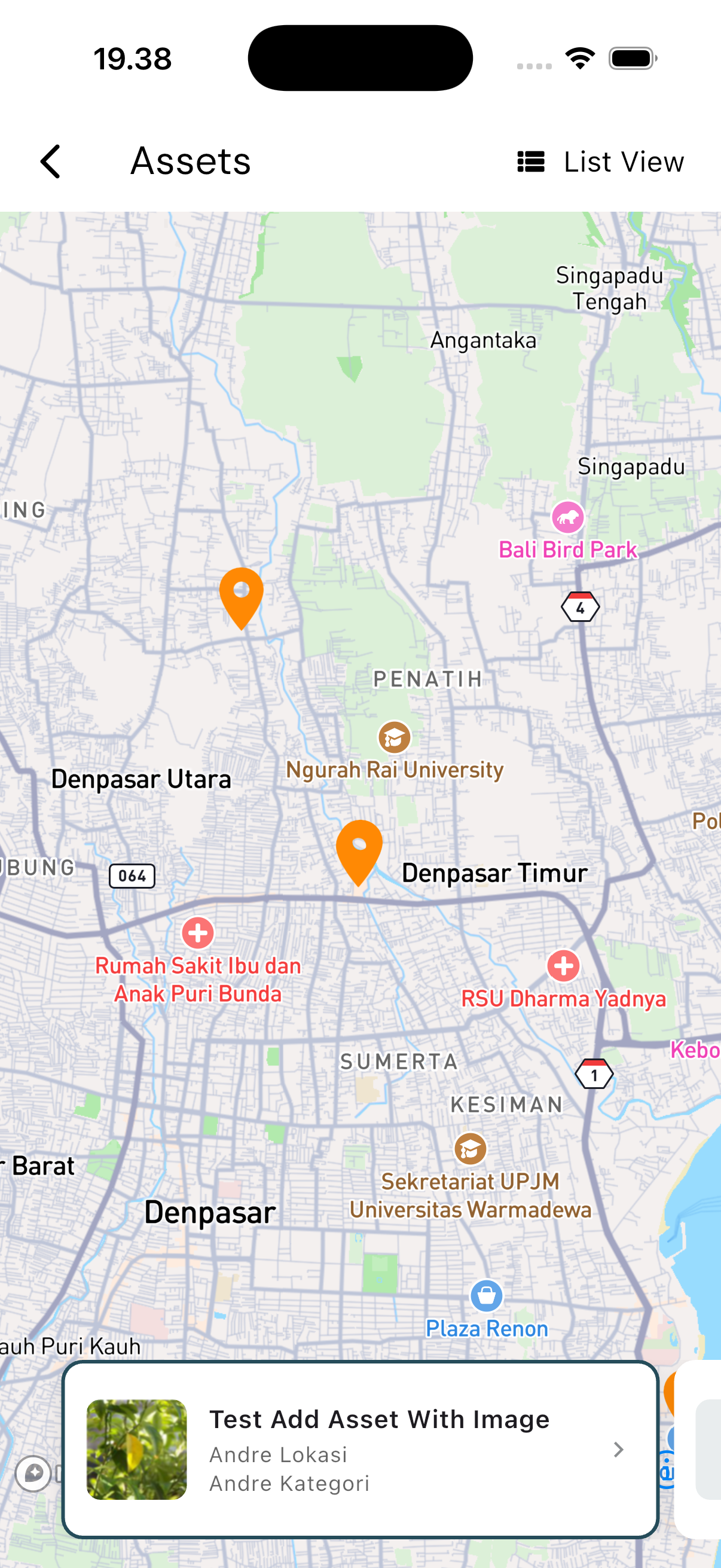
Every asset with coordinates appears as a marker. Tap a marker to see its card, then tap the card to open the asset.
This earns its keep when your assets are spread out — several buildings, several branches, or equipment in the field. Within one building, the list is usually quicker.
Assets without coordinates do not appear on the map but remain in the list. Tap List View in the top right to go back.
Asset Detail
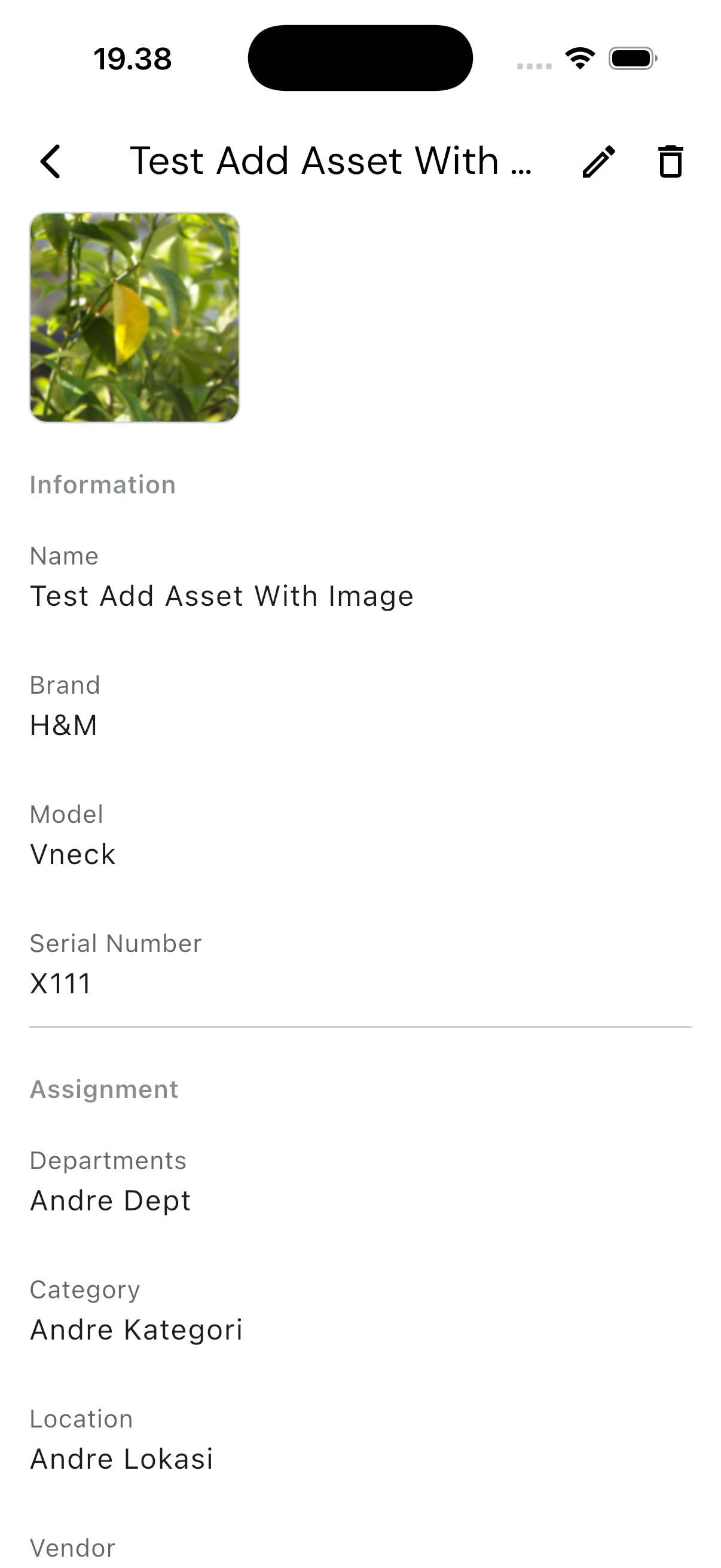
Information holds the name, brand, model, serial number, purchase date, and description.
Assignment holds the responsible department, the category, the location, and the supplying vendor.
The two fields most often skipped are the two that matter most later:
- Serial Number — without it, scanning a barcode cannot find the asset
- Purchased Date — this is what answers "is it still under warranty?"
Maintenance Schedule shows how often the asset is serviced — one-time, daily, weekly, monthly, yearly, or every so many days, weeks, months, or years — along with the tasks involved. With none set, it reads "No tasks".
Notes is where things go that fit no field: "noisy on a cold start", "mounting bolt replaced with a non-standard size". Each note records who wrote it, so you can go back and ask.
Adding and Editing Assets
Available to the Admin and Head roles.
- Tap the orange button on the list, or open an asset and tap the pencil
- Fill in the fields
- Tap Location Map if this asset should appear on the map — search for the address or tap the point directly
- Save
Keep the two apart: Location picks a registered location such as "Warehouse B", while Location Map stores the asset's own coordinates.
Deleting an Asset
Open the asset and tap the bin icon. The app asks for confirmation.
Think first: deleting an asset cuts the thread through its maintenance history. For equipment that is out of service but had a long life, leaving it in place is often the better call.