Maintenance
Scheduled maintenance is the work that should happen before something breaks, not after. The app shows it as a calendar, so you can see at a glance whether this week is packed or quiet, well before the day arrives.
Opening the Maintenance Calendar
There are two ways in:
- From Home, tap View All on the Upcoming Maintenance section
- From the Assets screen, tap the calendar icon in the top right
Reading the Calendar
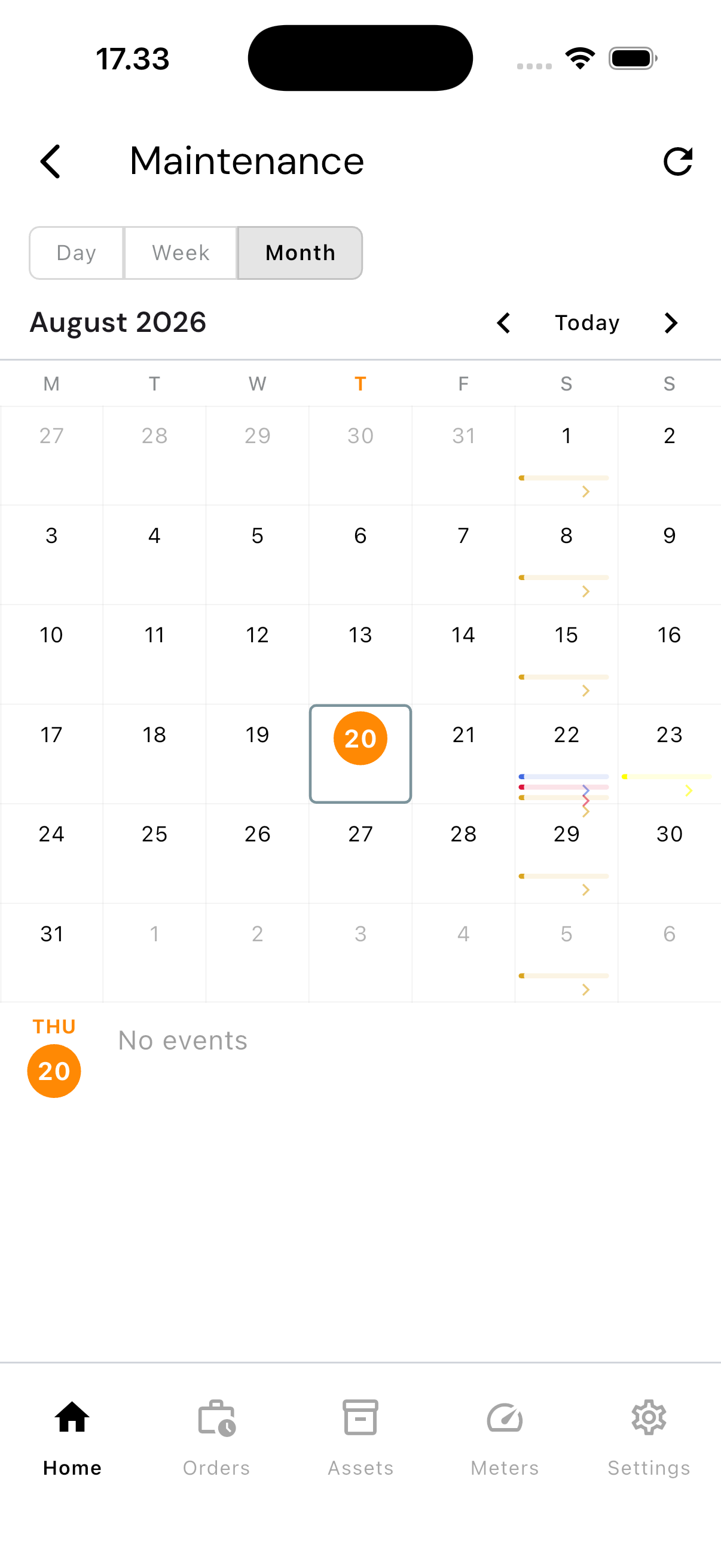
Three views are available: Day, Week, and Month. Dates with something scheduled show a coloured bar under the number — more bars, more assets due that day.
Tap a date to see its assets listed at the bottom of the screen.
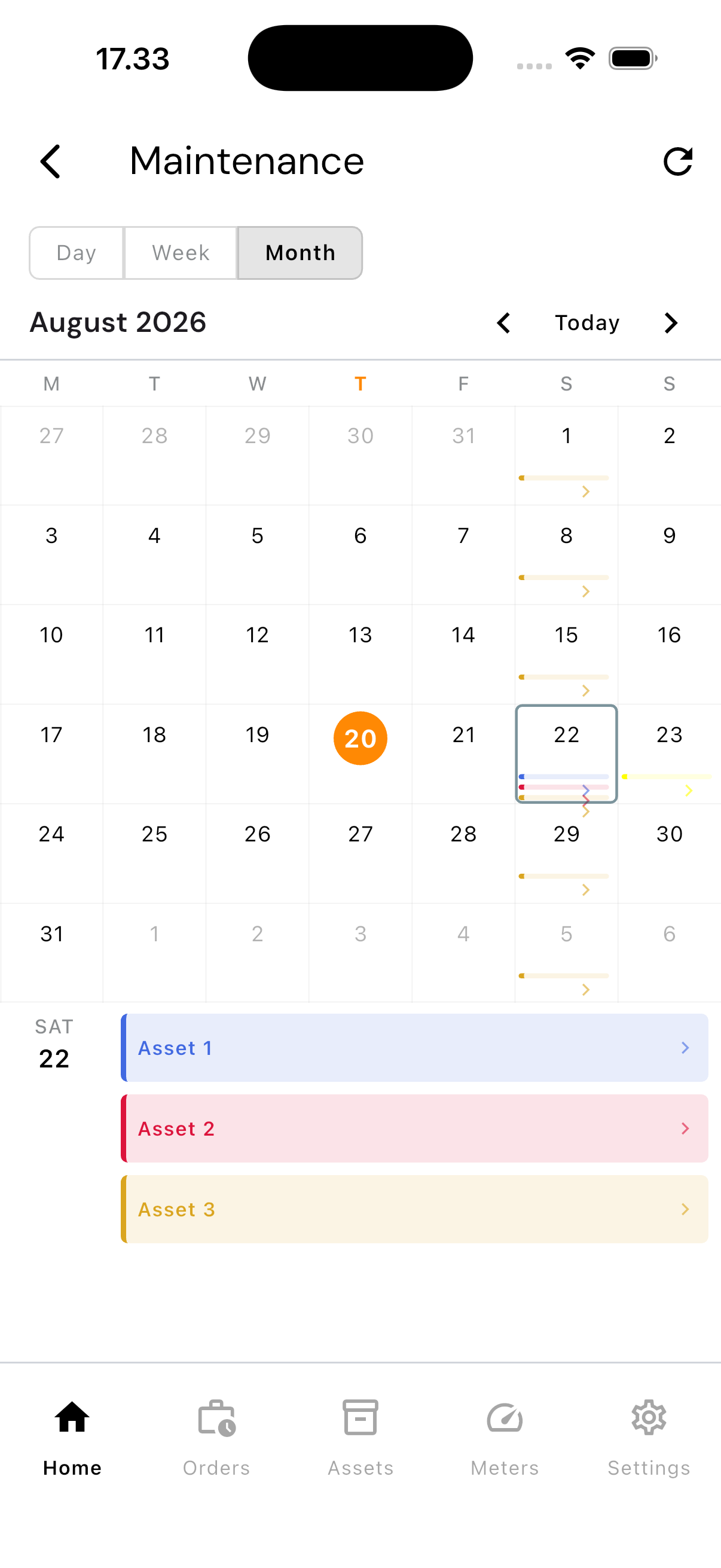
Each row is colour-coded and represents one asset due for a check on that date. Tap a row to open its schedule detail.
Where This Schedule Comes From
The maintenance schedule isn't created on this screen — it's set on the Maintenance Schedule field on each Asset, where you choose how it repeats: one-time, daily, weekly, monthly, yearly, or every so many days, weeks, months, or years. This calendar just shows the result in a form that's easy to scan.
If a date should have something scheduled but doesn't, check whether the schedule was actually set on that asset.
View-Only
There's no add or delete button here. To change a schedule, go back to the asset in question and edit its Maintenance Schedule there.
Common Problems
- Nothing shows up — tap the refresh icon in the top right
- The schedule looks wrong — check the repeat pattern on the asset itself, not on this screen
- Want to change a schedule — open the asset directly from the Assets page