Parts
Parts are the list of components you know by name: filters, belts, bearings, oil. This is the catalogue — what a part is called, its number, and who supplies it.
How many you hold and on which shelf is Inventory's job. The split looks fussy until you keep the same component in three different places.
Opening the Parts List
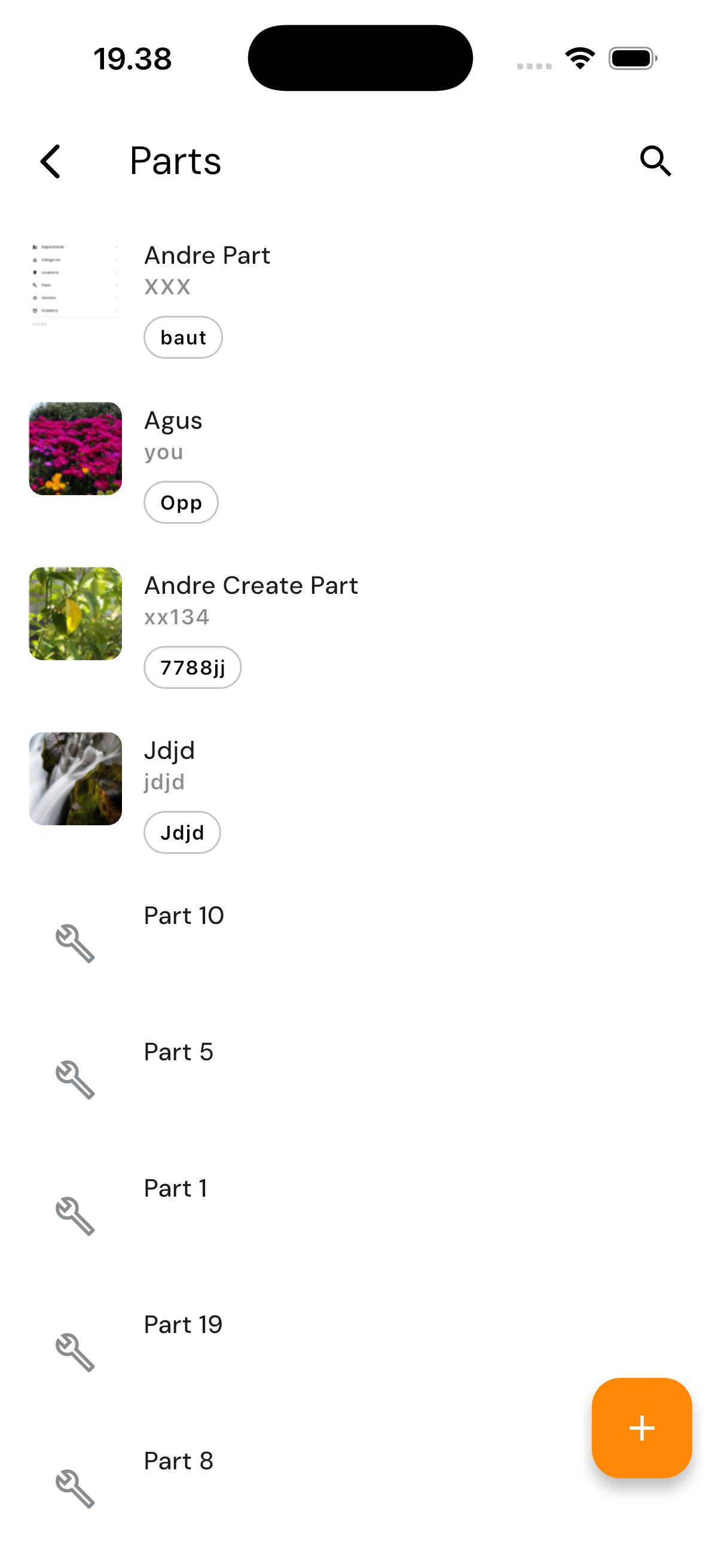
Tap the Settings tab, then under Manage choose Parts.
Reading the List
Each row shows the component's photo if it has one, its name, its number, and its type as a small label.
Use search once the list grows. With nothing recorded yet it reads "No parts found".
What the Detail Holds
| Field | What it is for |
|---|---|
| Part Name | The name the store staff will recognise |
| Part Number | The catalogue code — this is what you quote when reordering |
| Type | Grouping, which makes searching easier |
| Vendor | Who to order it from |
| Description | Free notes: which machines it fits, sizes, acceptable substitutes |
A component marked Non-Stock is not kept in the store — it is bought when needed. Marking it saves someone hunting the shelves for something that was never there.
Adding a Part
Available to the Admin and Head roles.
- Tap the add button
- Fill in the name, number, type, and description
- Choose the vendor — if that vendor is not registered yet, you can add it from this form without leaving the screen
- Save
A photo can be added from the change photo option. For components that look alike, a photo often helps more than a catalogue number.
Deleting
Open the part and choose delete. The app asks for confirmation first.