Locations
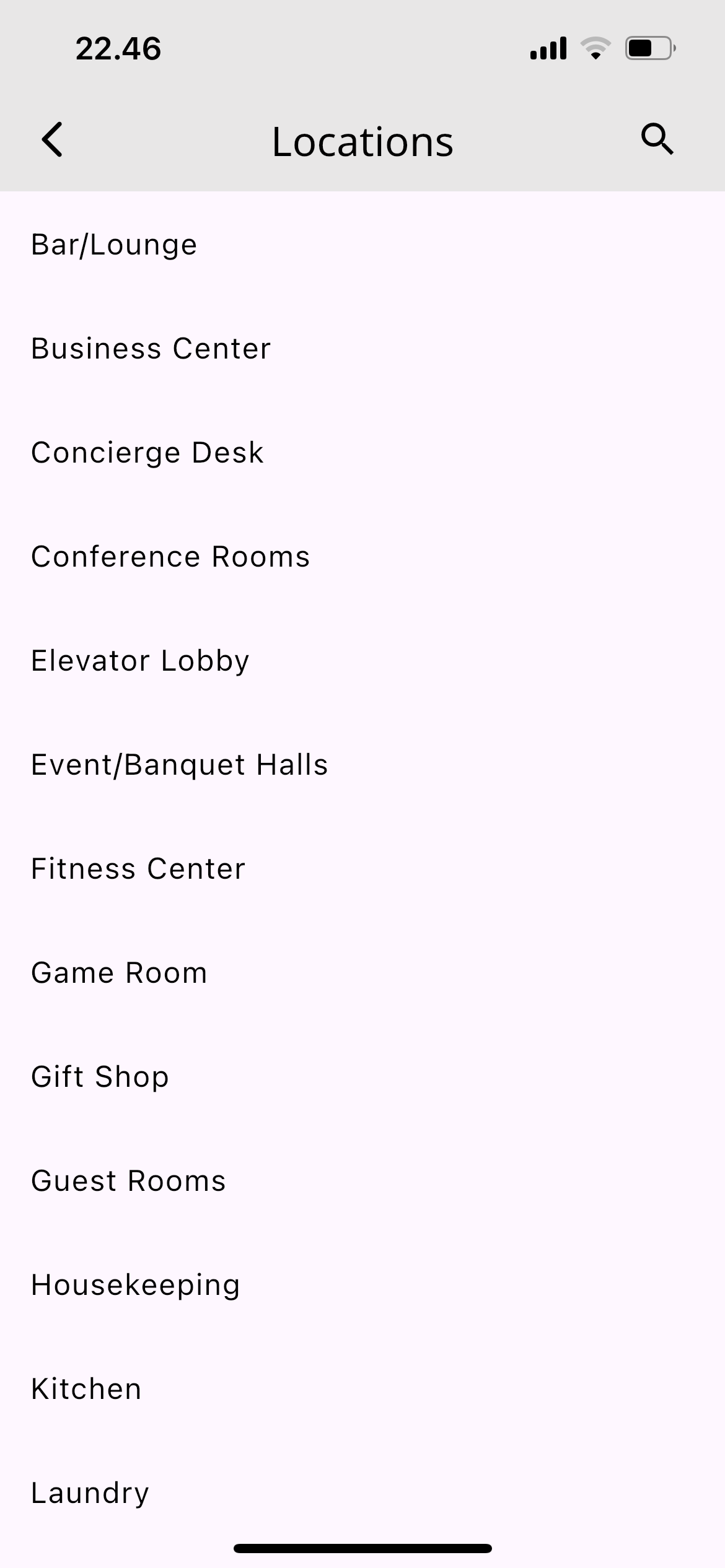
The locations list in the mobile app.
A location says where a problem or asset actually is — useful when the team needs to know where to go without asking first. The locations listed here are what appear as the Location choice when creating work orders and assets.
Opening the Locations List
- Open Settings in the mobile app
- Select Locations
What You See
The screen lists every locations record in your company, one row each, in the order returned by the server.
- Search: type in the search field to filter the list
- Refresh: pull the list down to fetch the latest data
Adding and Editing
The add button and editing are available only to users with the Admin or Head role. Other roles can view the list only.
Adding a new record
- Tap the add button
- Fill the Locations field with a name, for example
Lobby - Save
Editing or deleting
- Tap a row in the list
- Change the name and save, or use the delete option on the same form
Once saved, the list refreshes automatically and the app shows a confirmation message.
Notes
The only stored field is the name. Changes apply across your whole company and are visible to other users immediately.